After changes to the network’s gas price configuration, you need to refresh your Keplr wallet settings to ensure they reflect the latest configuration. If the Keplr wallet settings are not refreshed, transactions in the Validator Portal, such as claiming rewards and delegating tokens, may fail. Follow the steps below to re-add Autheo Mainnet to your Keplr wallet.

Process

1. Log out of the Validator Portal

Log out of the Validator Portal. Log Out

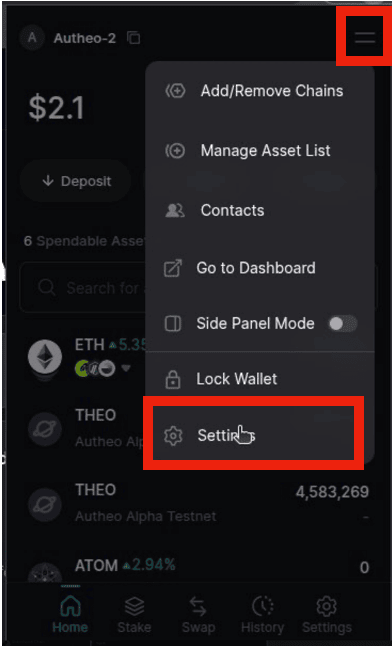
2. Open Keplr Settings

Open your Keplr wallet and go to Settings. Go To Settings 1
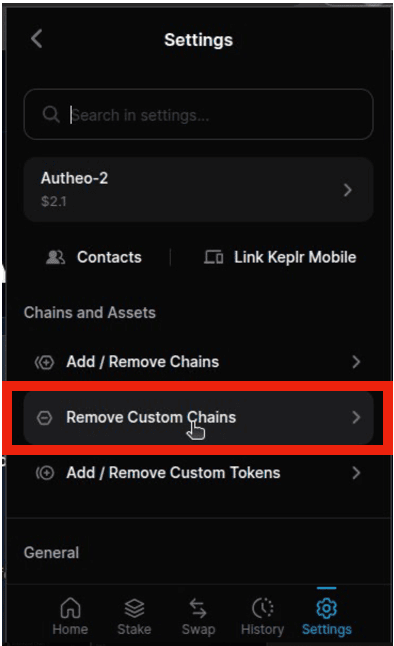
3. Remove custom chains

Click Remove Custom Chains. Remove Custom Chains
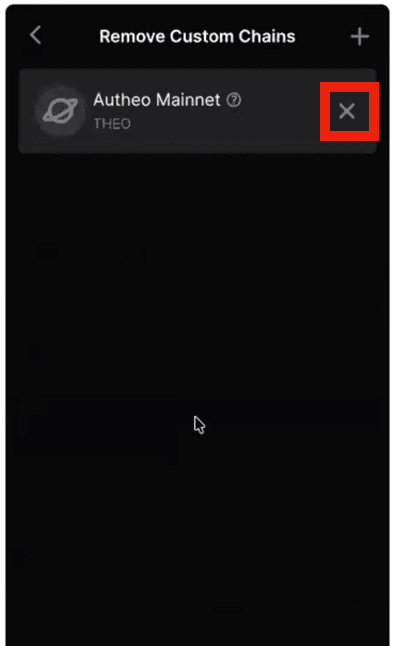
4. Remove Autheo Mainnet

Remove Autheo Mainnet from your custom chains. Remove Autheo Mainnet
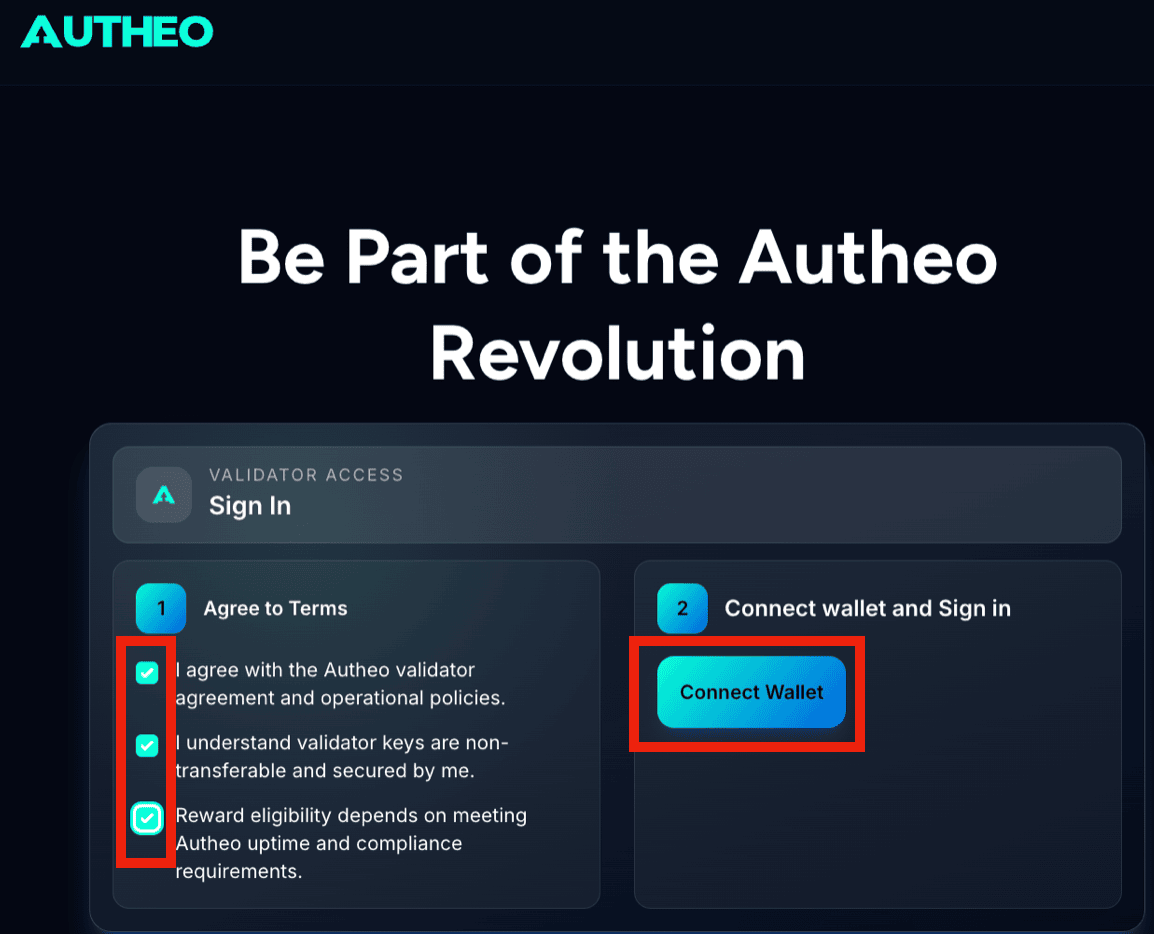
5. Refresh the Validator Portal

Refresh the Validator Portal and log in again. Refresh
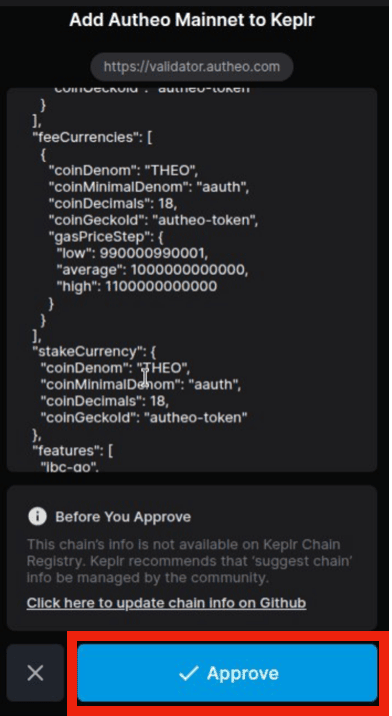
6. Approve the network configuration

A pop-up will appear asking you to confirm the correct network configuration. Click Approve. Approve
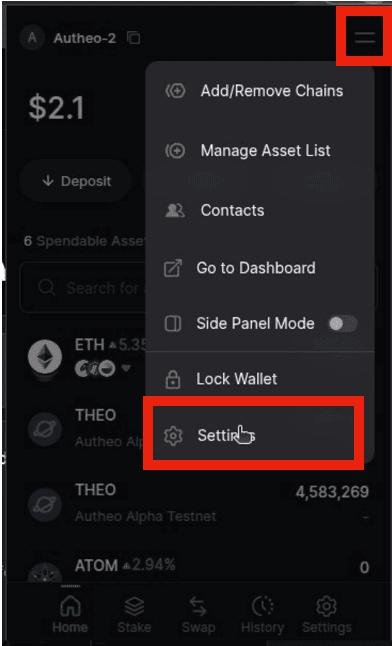
7. Open Keplr Settings again

In Keplr, go to Settings again. Save
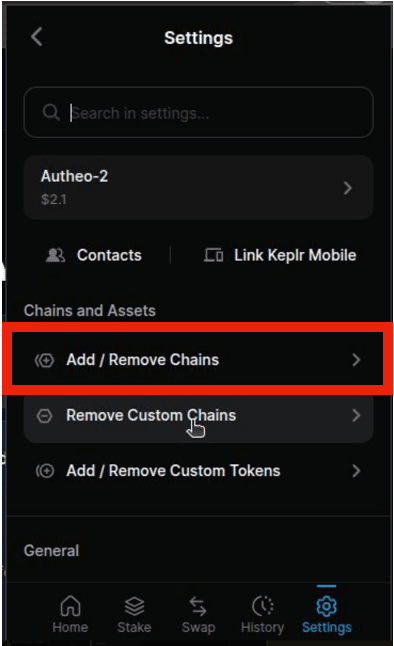
8. Open Add / Remove Chains

Click Add / Remove Chains. Last
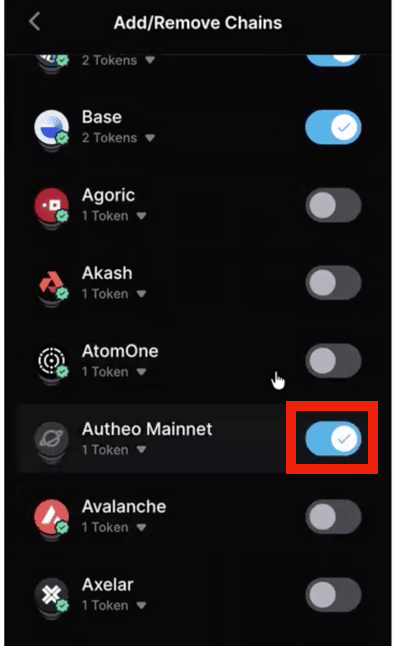
9. Enable Autheo Mainnet

Enable Autheo Mainnet. Picture1
10. Complete the process

Autheo Mainnet has now been re-added to your Keplr wallet. You can return to the Validator Portal and continue using the available features.