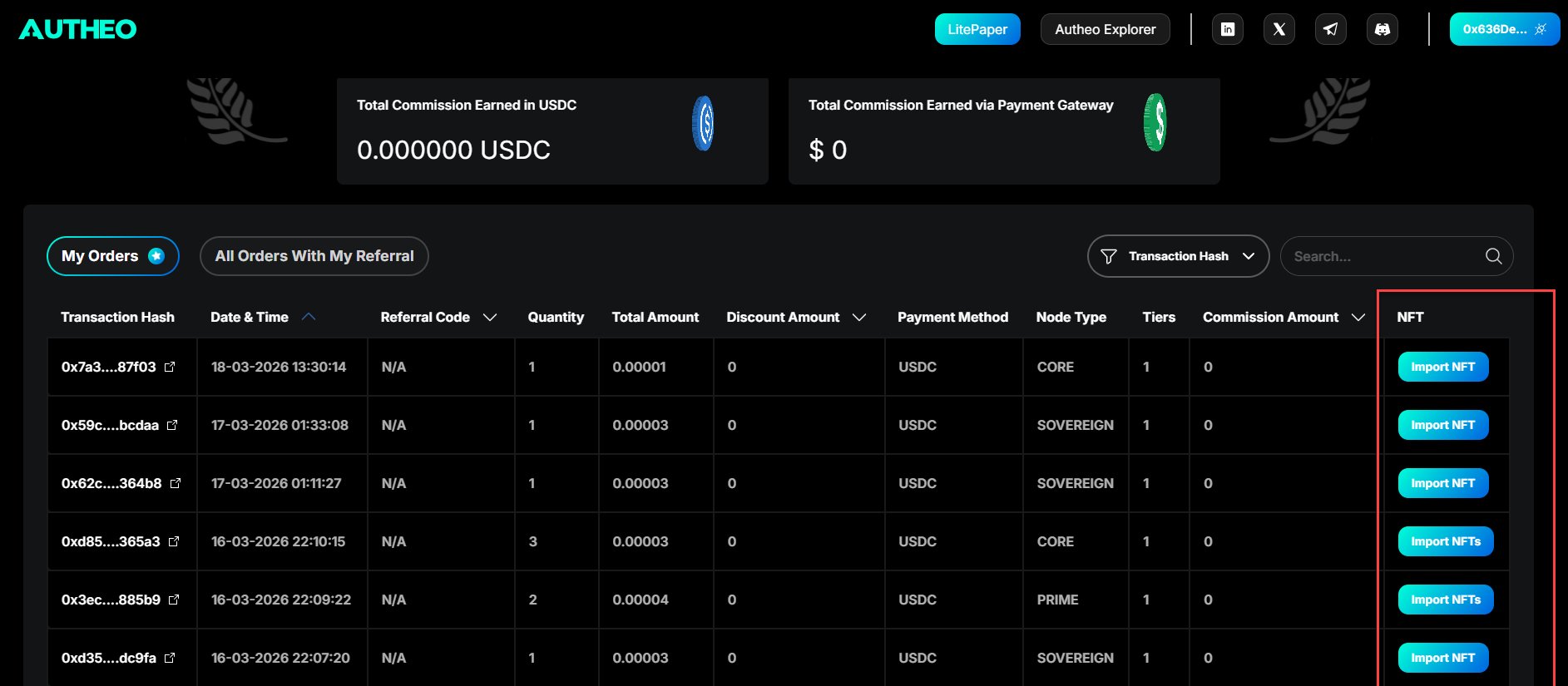
/orders) provides a complete history of all purchases and referral activity associated with your connected wallet.
My Orders tab
Displays all node license purchases made by your connected wallet address.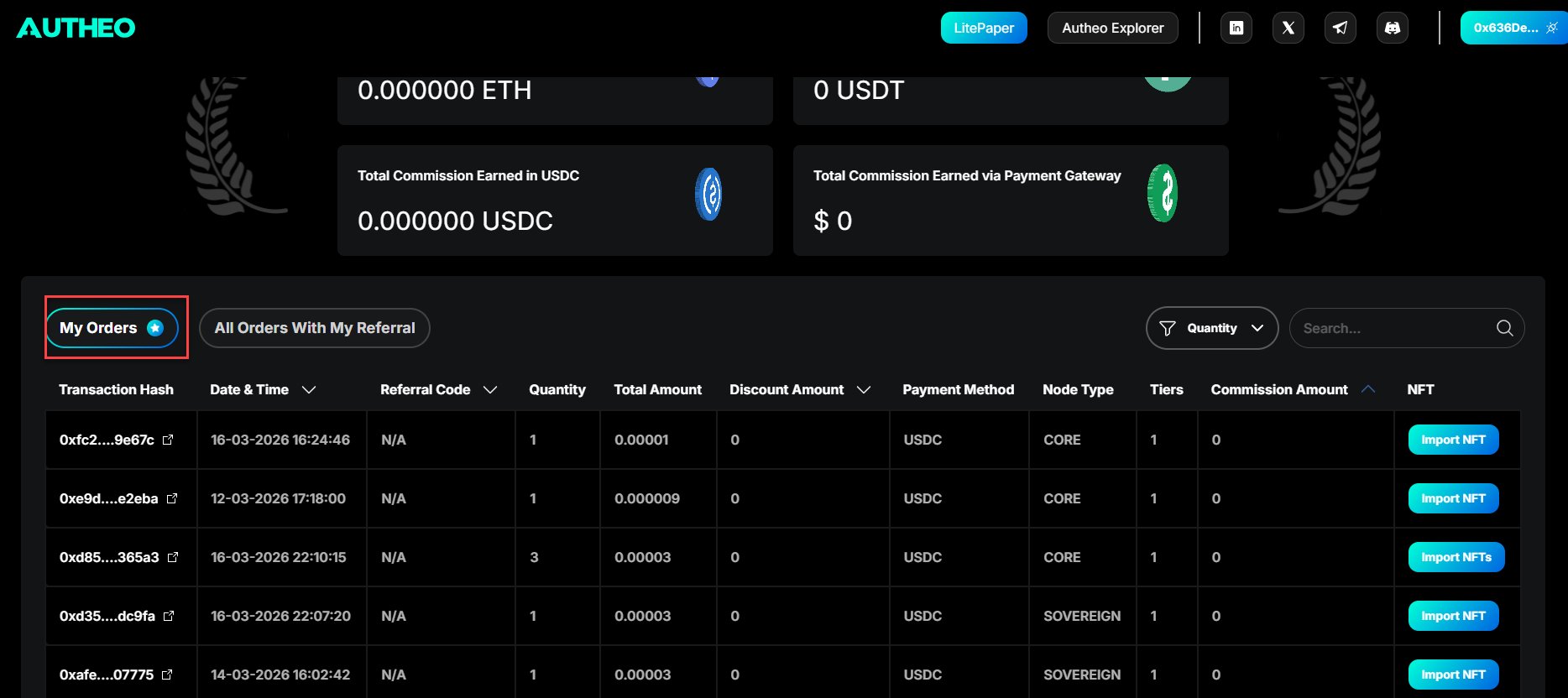
All Orders With My Referral tab
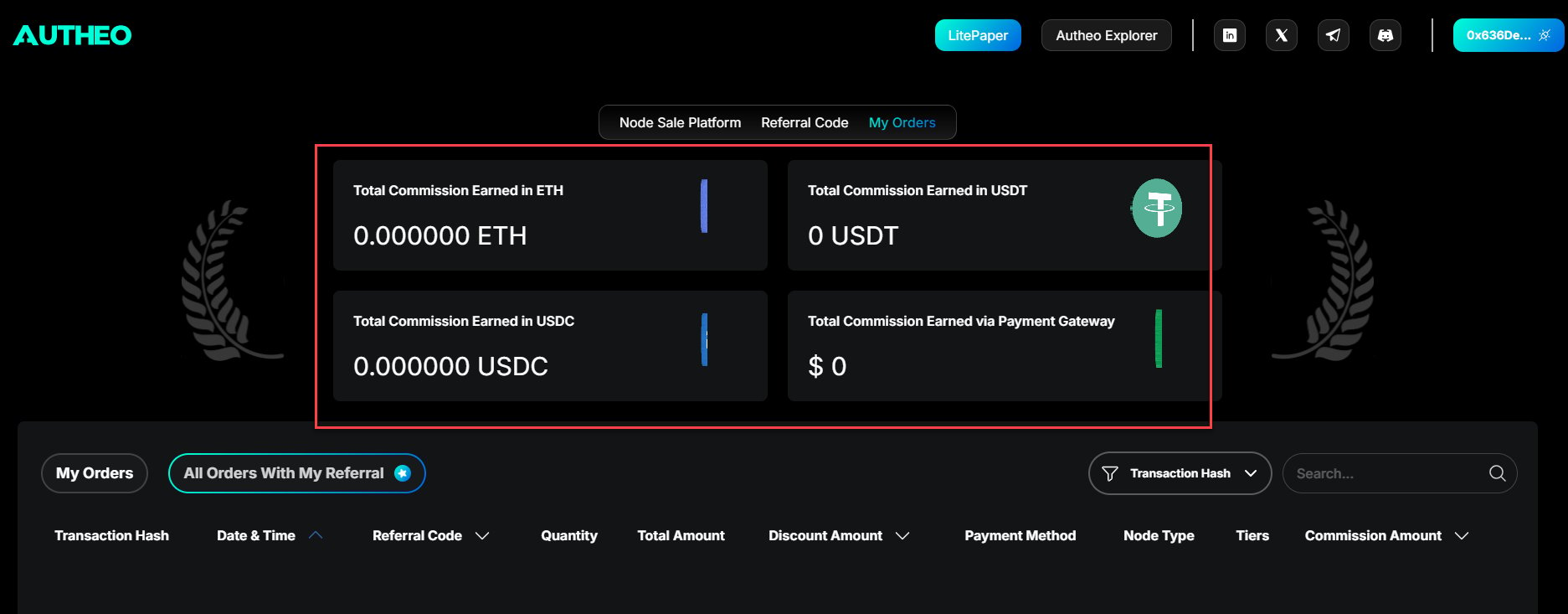
Displays all purchases made by others using your referral code. Commission summary tiles at the top show total commissions earned:- Total commission earned in ETH
- Total commission earned in USDT
- Total commission earned in USDC
- Total commission earned via payment gateway
Importing your NFT into MetaMask
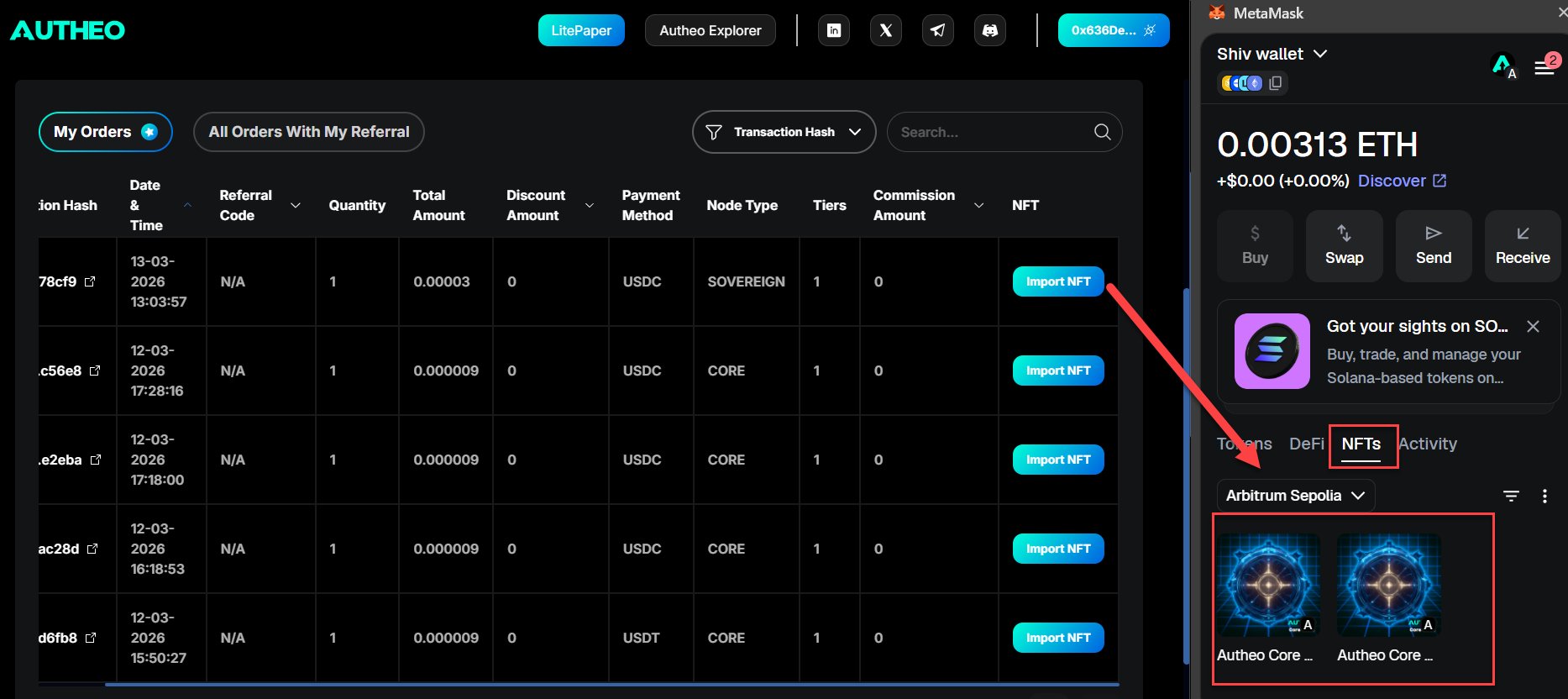
After purchasing a node license, import the NFT into MetaMask to make it visible in your wallet.1
Open the Orders tab
Navigate to the My Orders tab from the main navigation.
2
Find the order
Locate the order containing the NFT you want to import and expand the row.
3
Click Import NFT
Click the Import NFT button next to the NFT’s token ID.
4
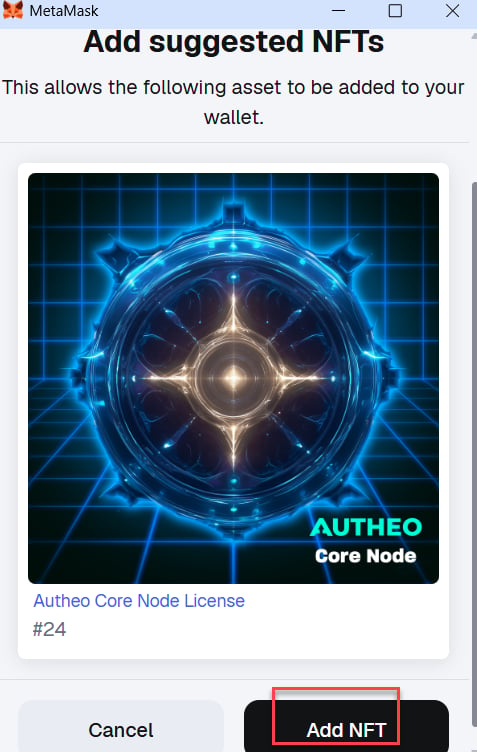
Confirm in MetaMask
MetaMask will switch to Arbitrum Sepolia if needed and prompt you to add the ERC-721 token. Click Add.