If you already hold THEO on Base (for example, tokens you bought directly on Hydrex), you can skip this guide and go straight to Buying and trading THEO on Hydrex.
Requirements
1. Add THEO as a custom token on Base
The first time you interact with THEO on Base network, your wallet won’t recognize it automatically — you need to add it as a custom token. The steps below use MetaMask; the process is similar for other EVM wallets.1
Select Base network
In your wallet, go to Tokens and select Base network.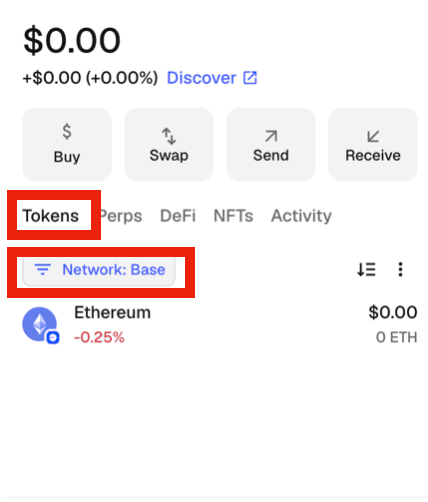
2
Open Manage tokens
Click the three-dot menu and choose Manage tokens.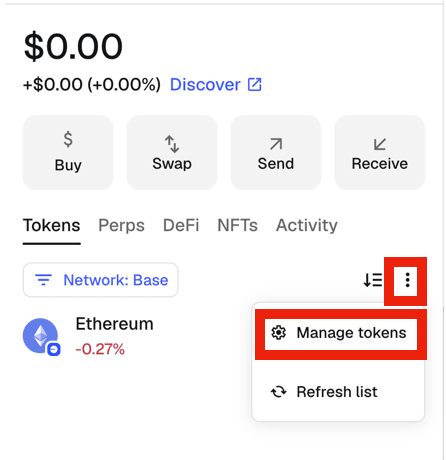
3
Add a custom token
Click Add a custom token.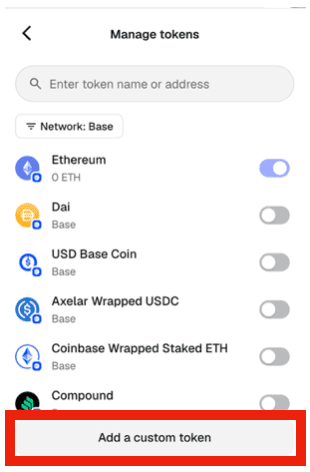
4
Enter the THEO contract address
Make sure the Network is set to Base, then enter the token contract address:Click Add token.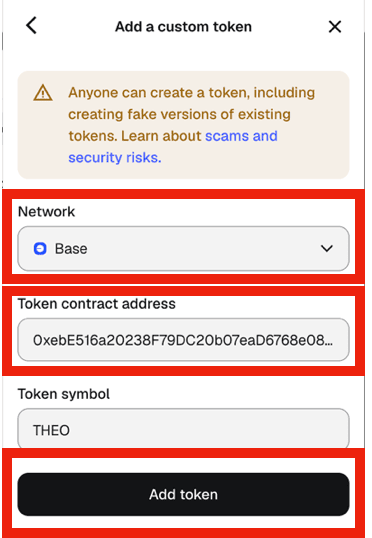
5
Confirm THEO is visible
THEO now appears in your wallet’s token list for Base network.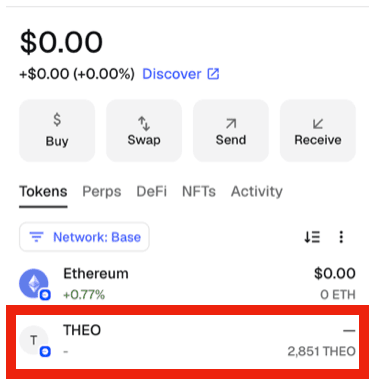
2. Bridge THEO using the Autheo Bridge
The Autheo Bridge at hyper.autheo.com is the primary way to move THEO between Autheo Mainnet and Base. See the Bridge overview for more on how the Bridge works generally.1
Go to the Autheo Bridge
Navigate to https://hyper.autheo.com/.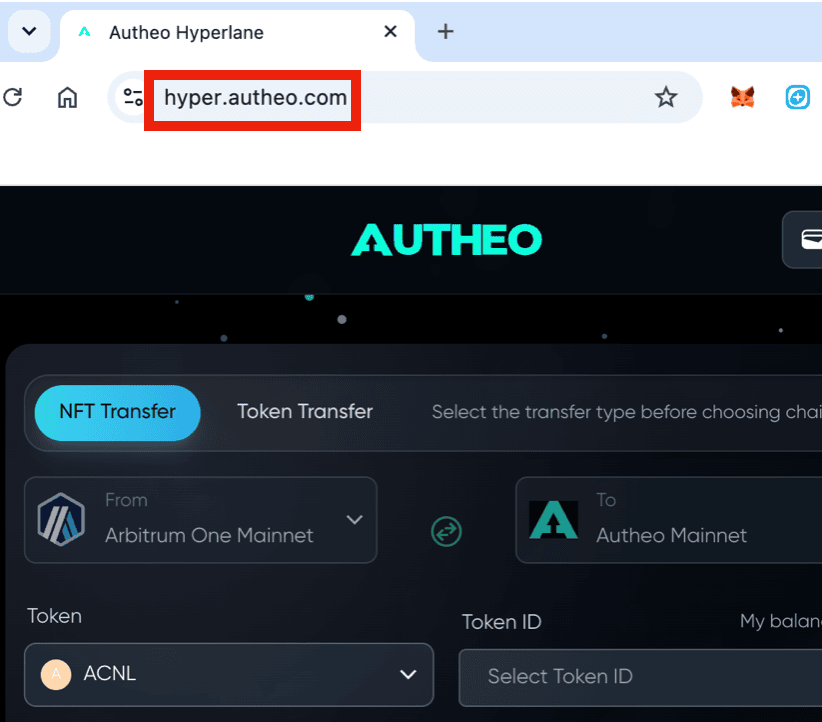
2
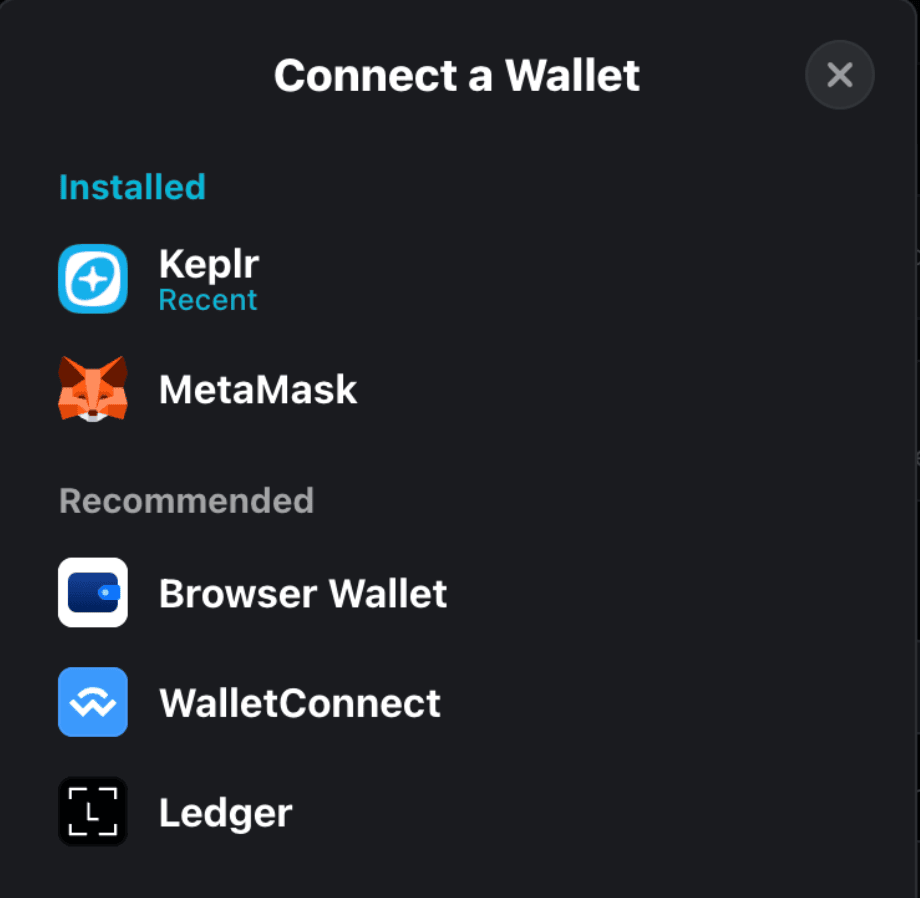
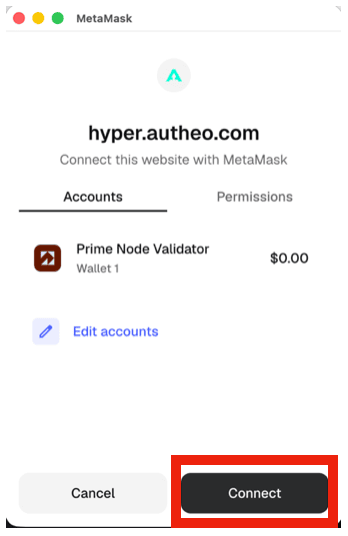
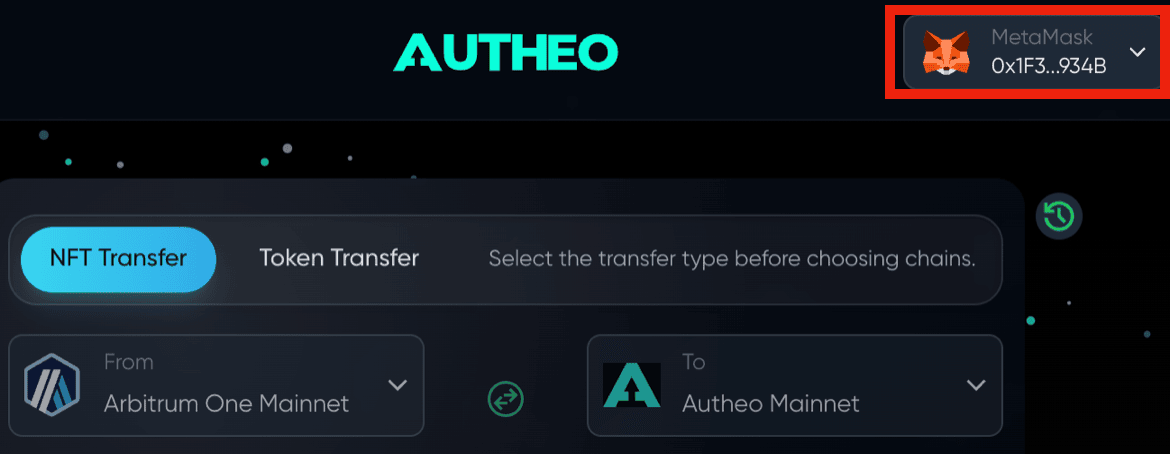
Connect your wallet
Click Connect Wallet.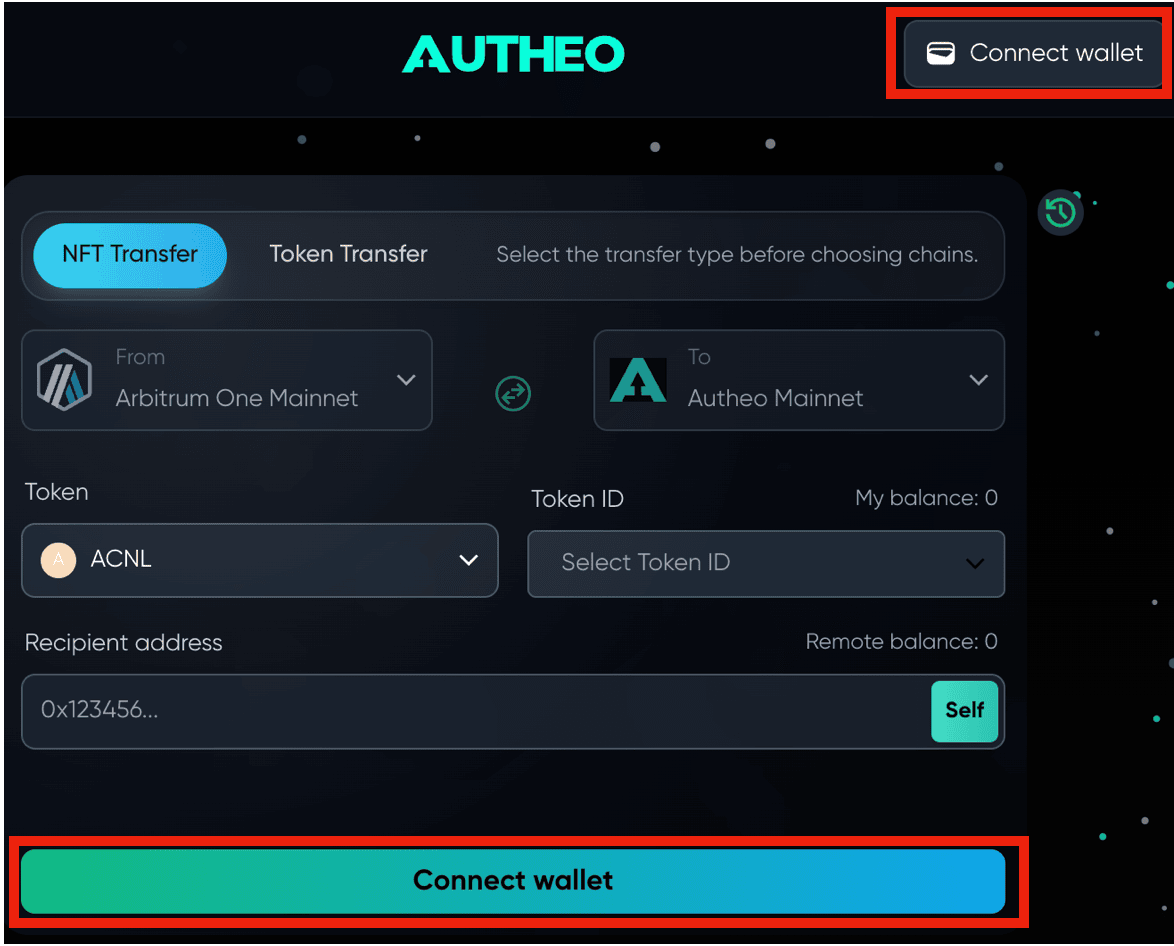
3
Open the Token Transfer tab
Click the Token Transfer tab. This defaults the source network (From) to Autheo Mainnet and the destination network (To) to Base Mainnet.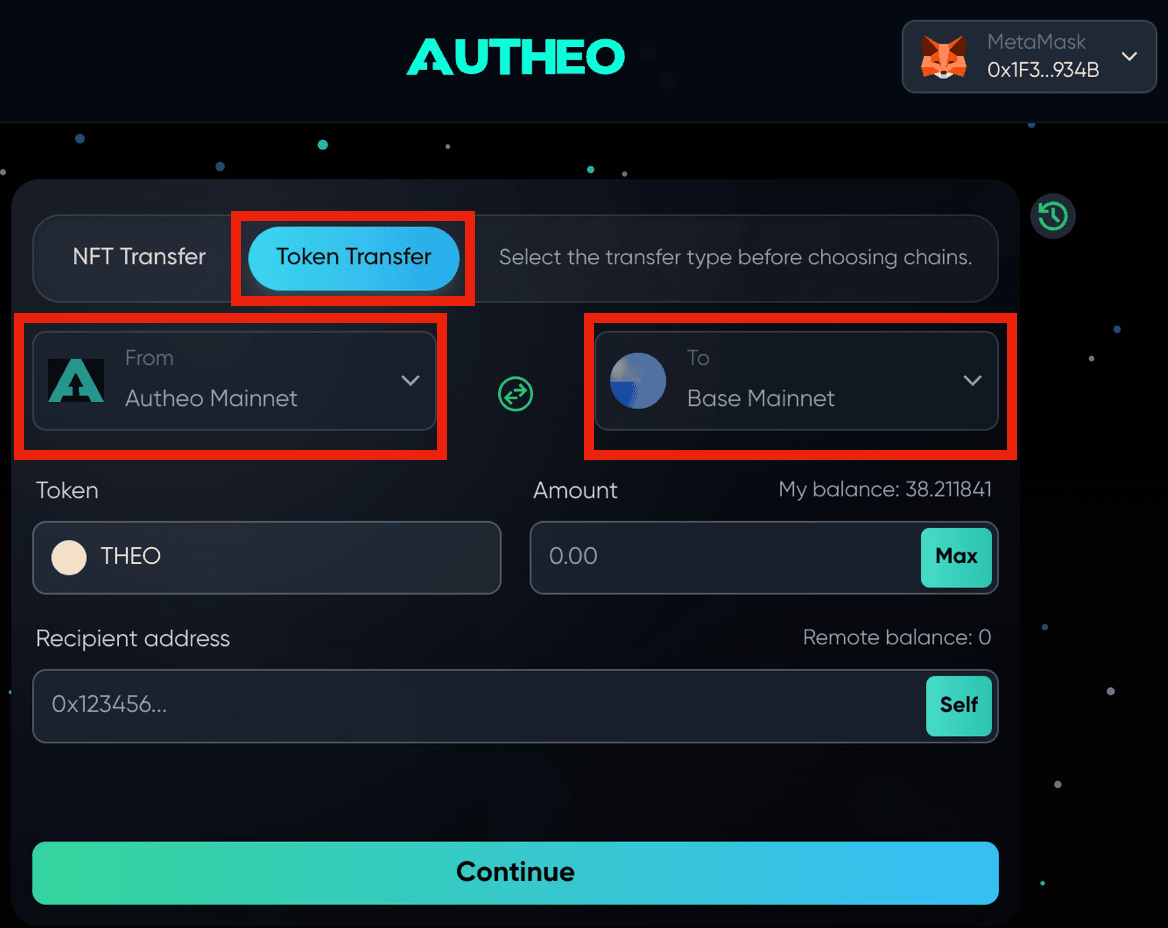
4
Enter the amount
Enter the amount of THEO you want to bridge.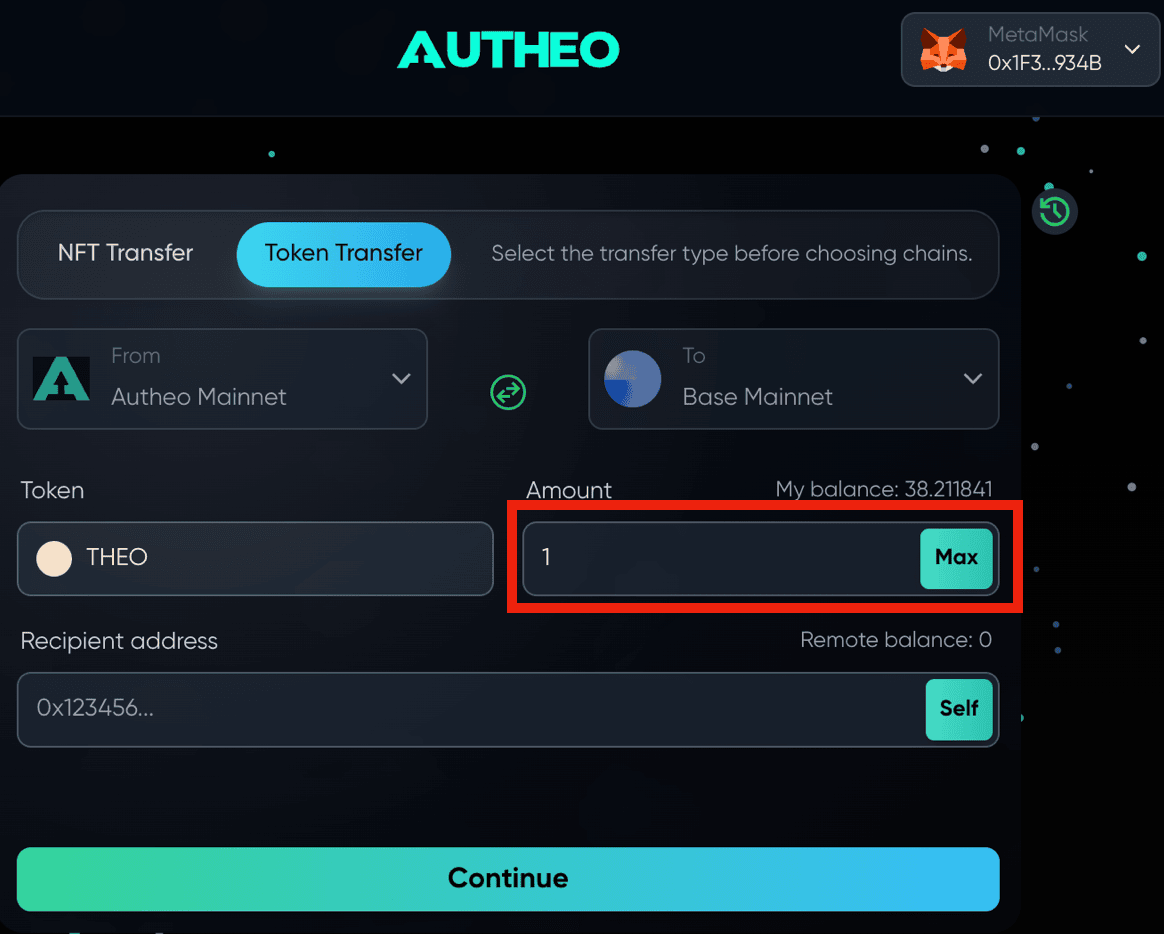
5
Enter the recipient address
Enter the recipient address, or click Self if you’re bridging to the same wallet, then click Continue.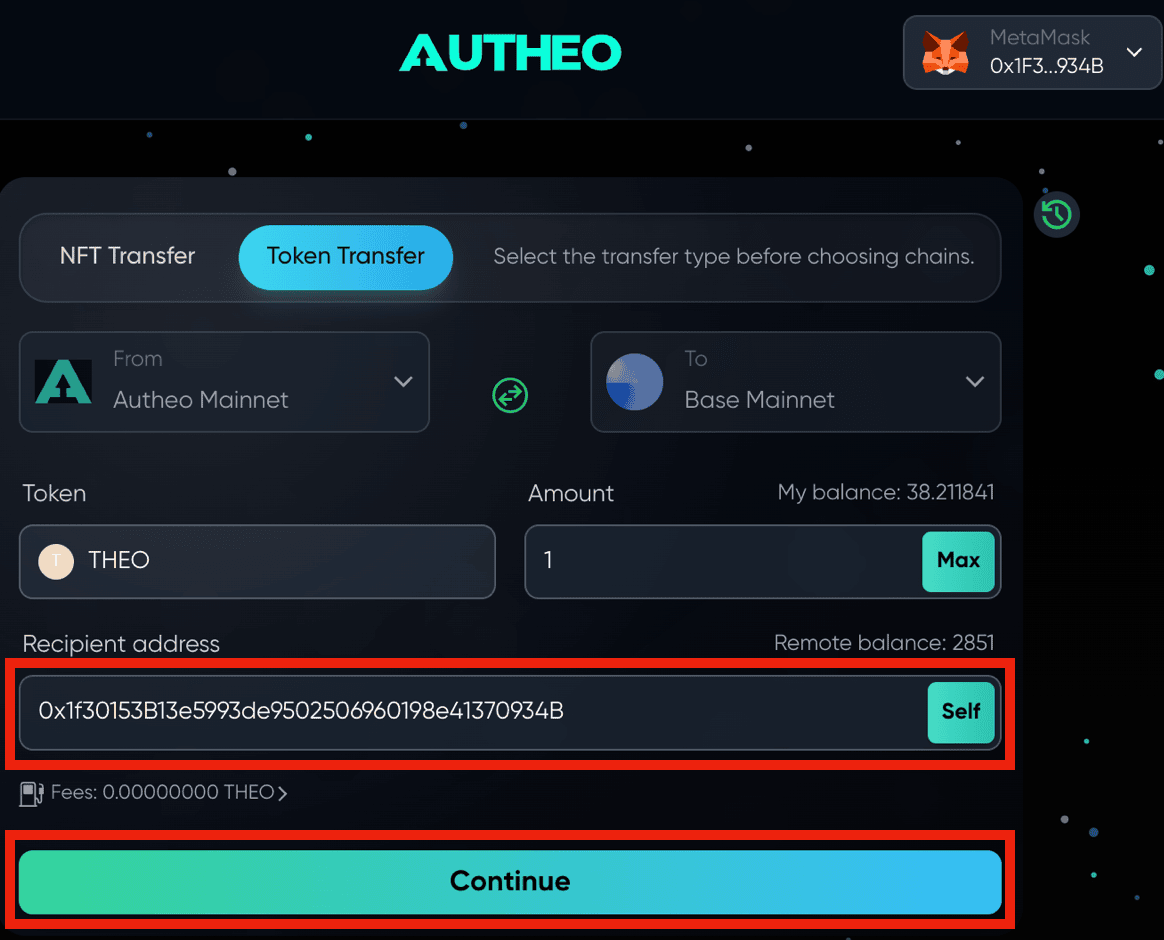
6
Double-check the recipient address
Verify the recipient address is correct, then click Continue.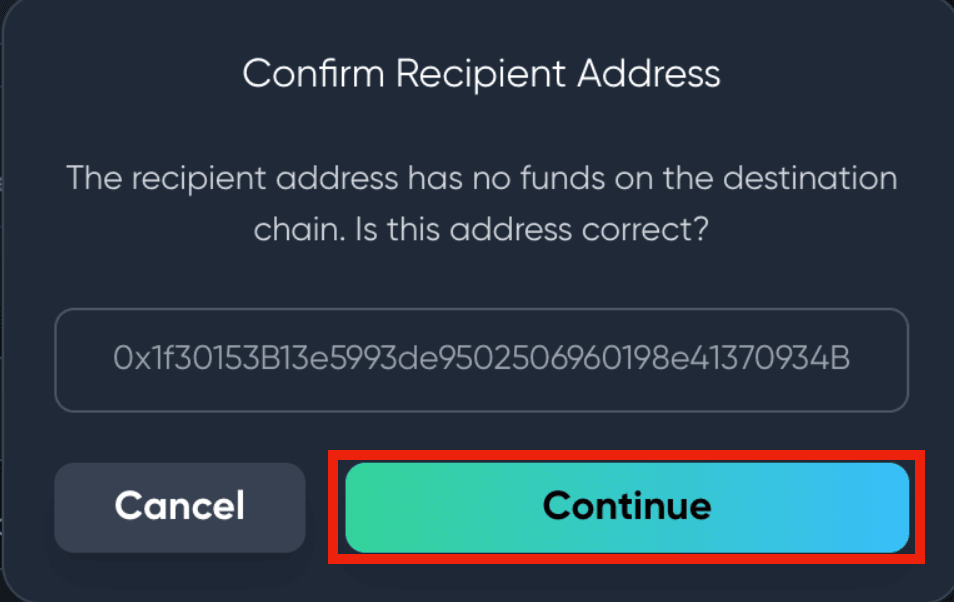
7
Double-check the remote token address
Verify the Remote Token address matches 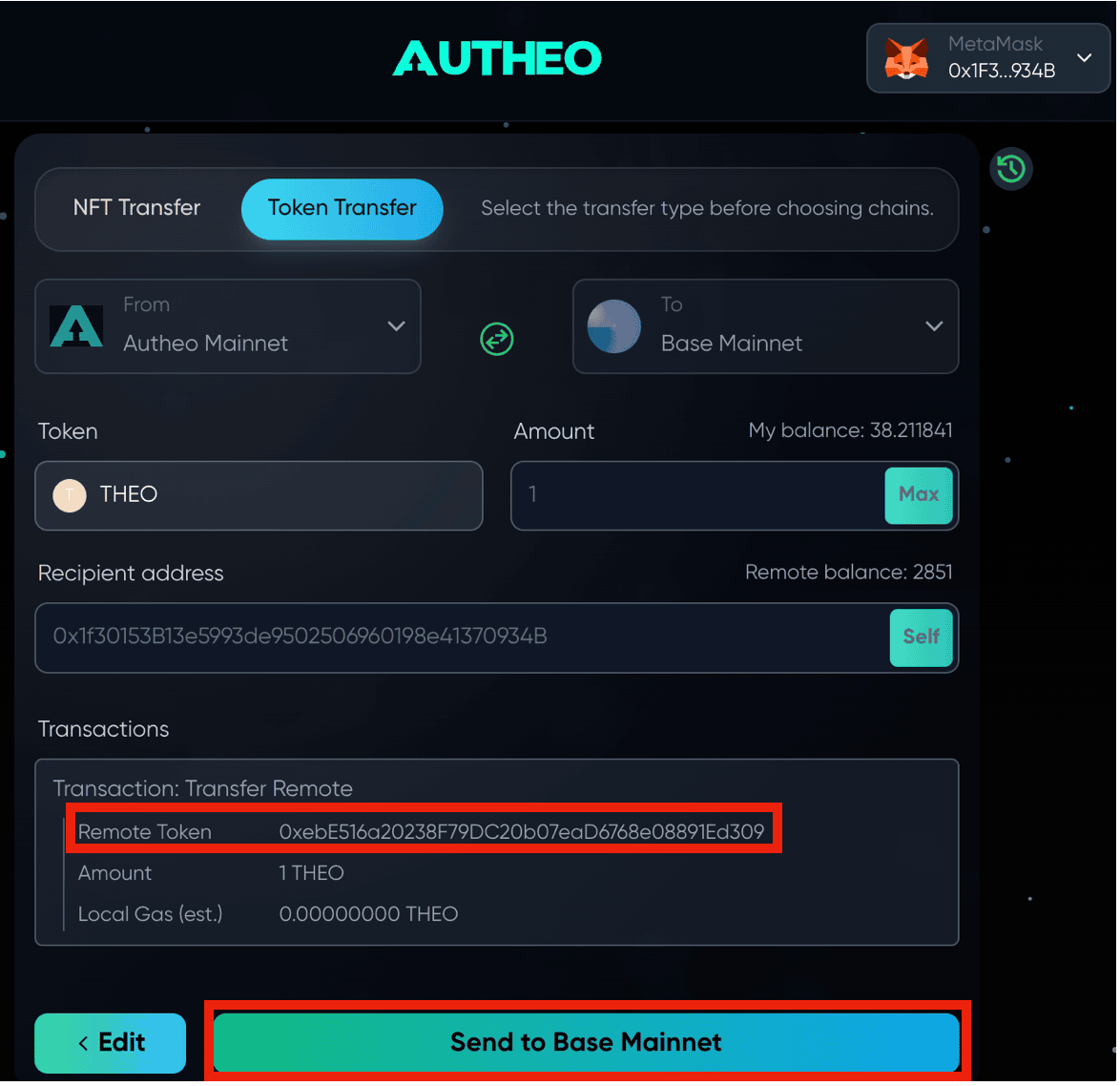
0xebE516a20238F79DC20b07eaD6768e08891Ed309, then click Send to Base Mainnet.8
Sign the transaction
A transaction request pop-up appears in your wallet. Click Confirm to sign it.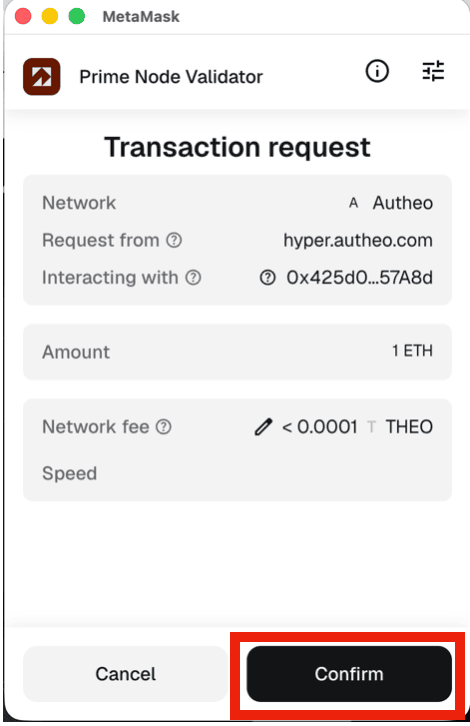
9
Bridging complete
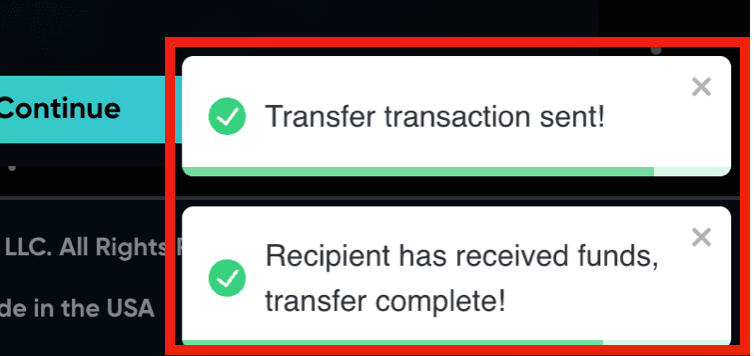
Once the bridge completes, you’ll see success confirmations.