

Where THEO trades
THEO trades on four Autheo-verified markets:
Official THEO token contracts:
0xebE516a20238F79DC20b07eaD6768e08891Ed309 on Base and 0x3dc751e0da01812e6d9143cc696e7f07ea94da48 on Robinhood Chain. Native THEO on Autheo Mainnet is the chain’s own coin.
If you already hold THEO on Autheo Mainnet (for example, validator rewards, staking rewards, or Node Sale THEO):
- MEXC: deposit it directly. MEXC accepts THEO deposits on Autheo Mainnet. Copy the address only from MEXC’s official THEO deposit page, confirm the network shown is Autheo Mainnet, and send a small test amount first. Never send THEO from Base or Robinhood Chain to a MEXC deposit address.
- Hydrex: bridge it to Base first. See Bridging THEO to Base.
- Uniswap: bridge it to Robinhood Chain first. See Bridging THEO to Robinhood Chain.
Requirements
1. Get ETH on Base for gas
Every buy, sell, or trade on Hydrex requires ETH on Base network to pay gas. You can acquire it by:- Buying ETH (Base) directly on a CEX or DEX
- Swapping into it using your wallet’s built-in swap feature (e.g. MetaMask Swap)
- Bridging ETH from another network to Base via Base Bridge or a third-party cross-chain bridge (e.g. Superbridge, Brid.gg)
2. Add THEO as a custom token on Base
The first time you interact with THEO on Base, add it as a custom token in your wallet. The steps below use MetaMask; the process is similar for other EVM wallets.1
Select Base network
In your wallet, go to Tokens and select Base network.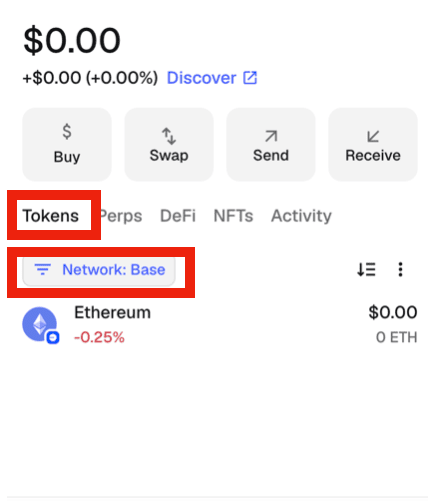
2
Open Manage tokens
Click the three-dot menu and choose Manage tokens.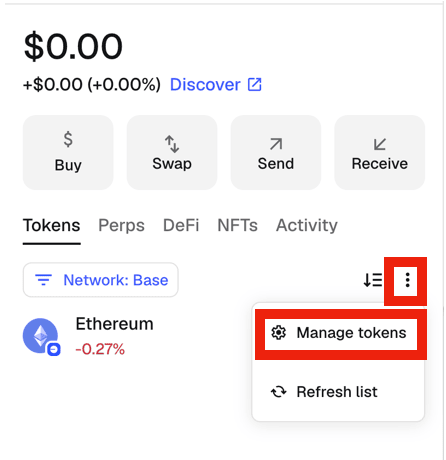
3
Add a custom token
Click Add a custom token.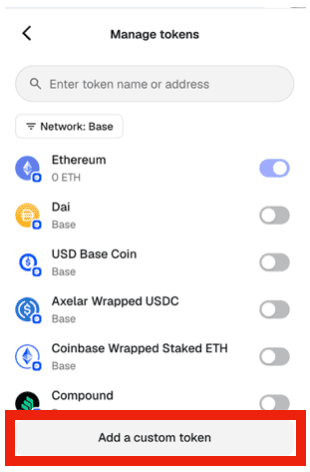
4
Enter the THEO contract address
Make sure the Network is set to Base, then enter the token contract address:Click Add token.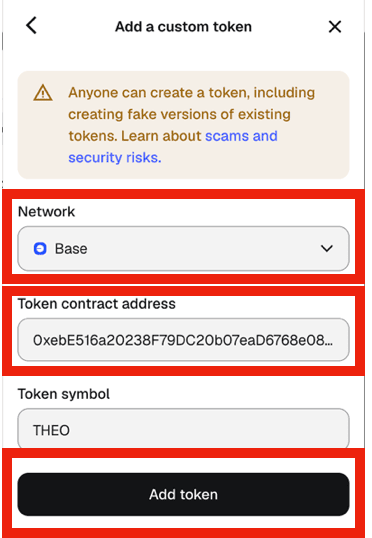
5
Confirm THEO is visible
THEO now appears in your wallet’s token list for Base network.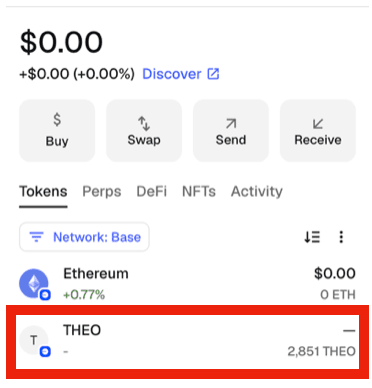
3. Connect to Hydrex
1
Go to Hydrex
Navigate to https://www.hydrex.fi/.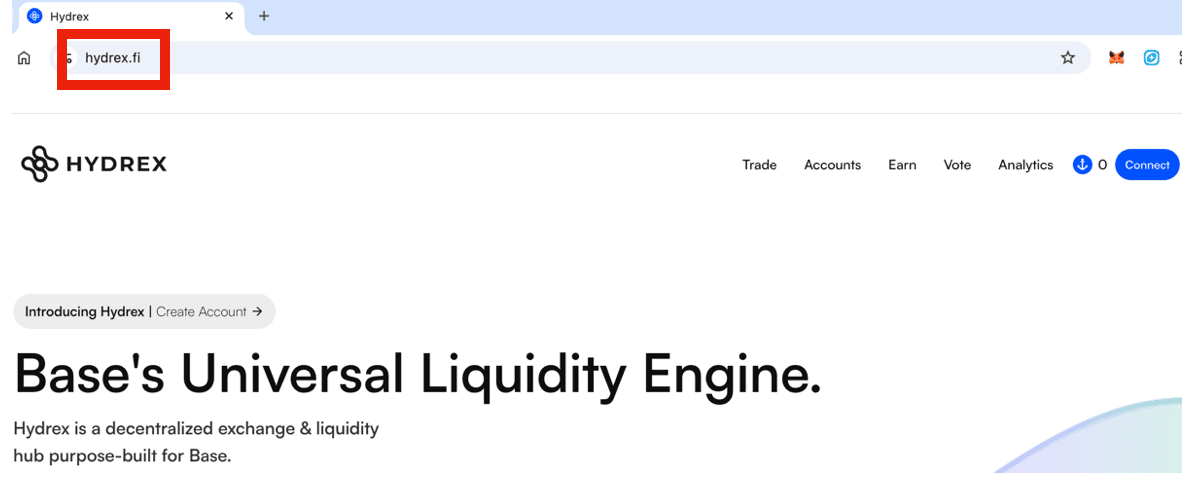
2
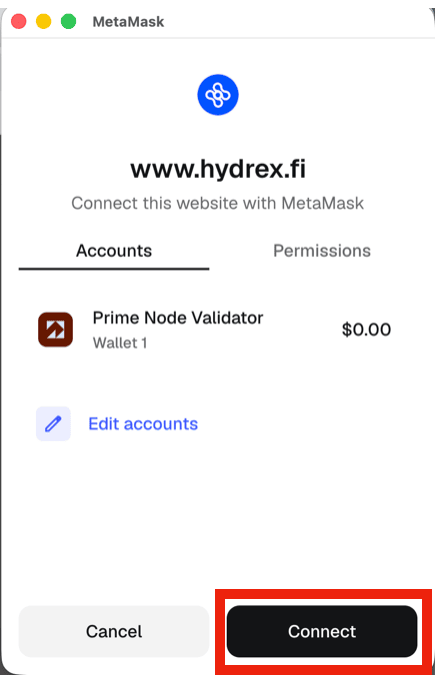
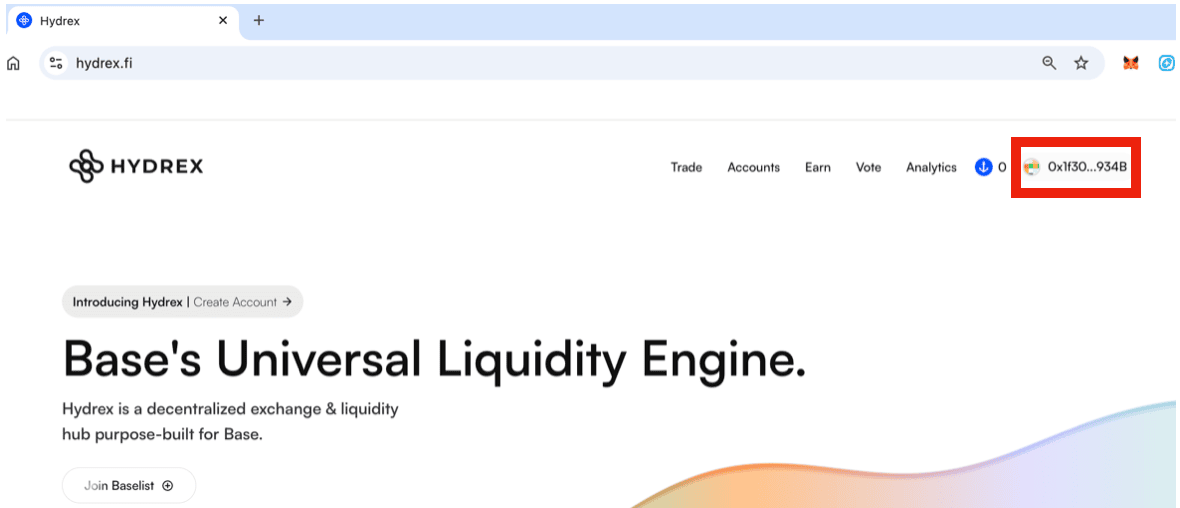
Connect your wallet
Click Connect.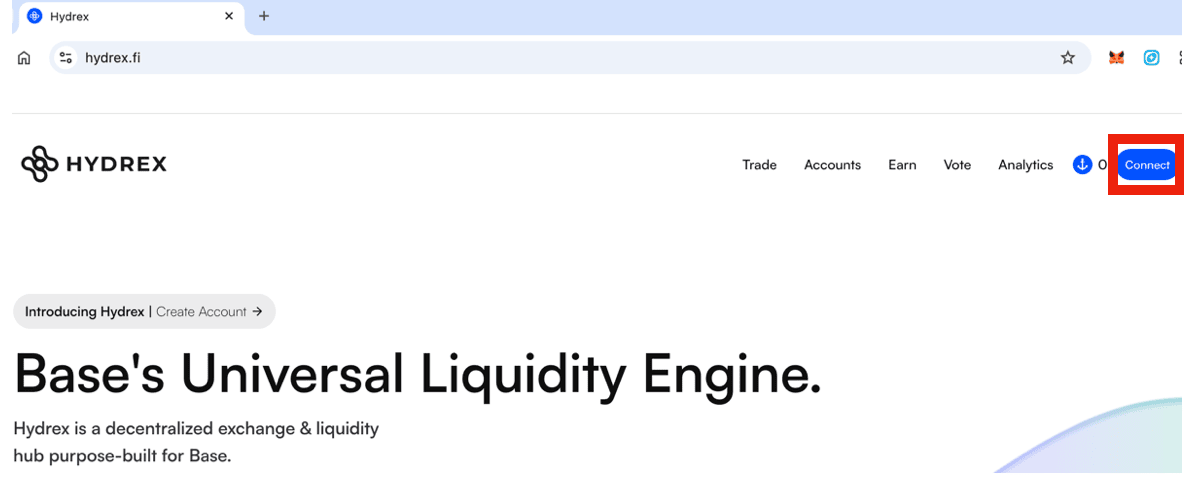
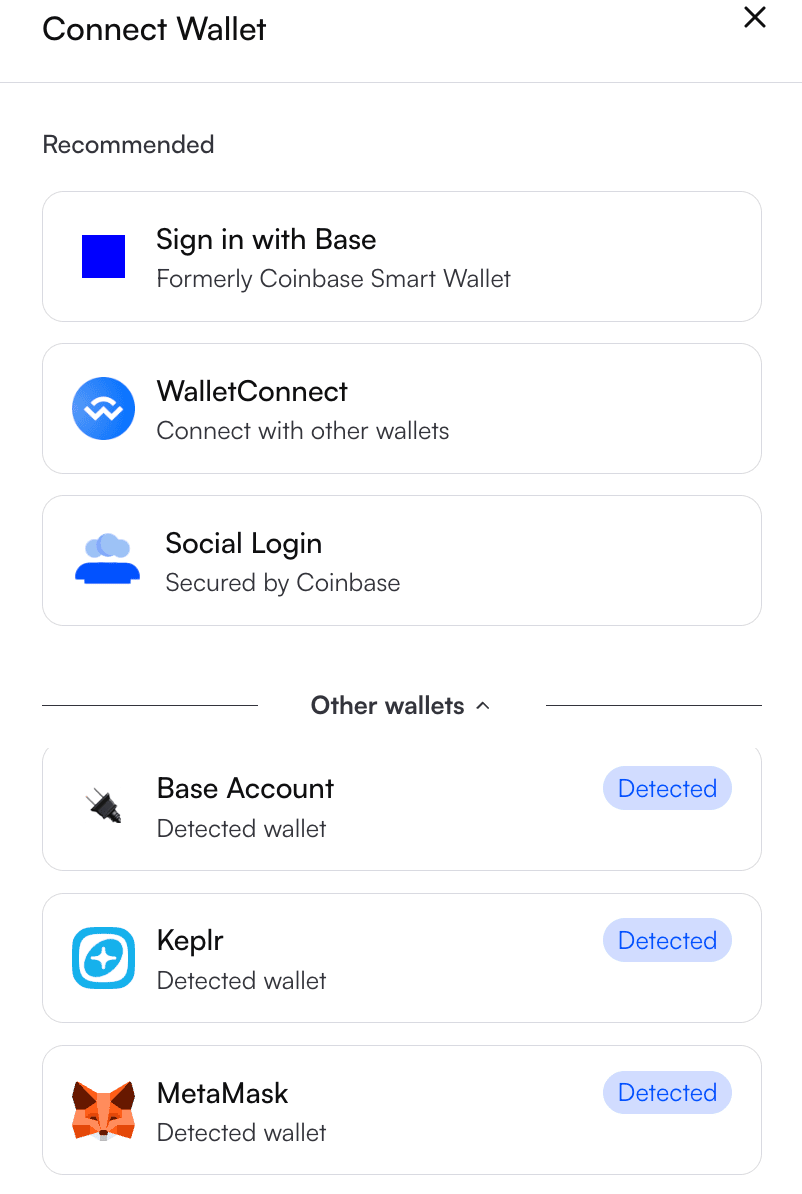
3
Open the swap interface
Click Trade, or go directly to hydrex.fi/swap.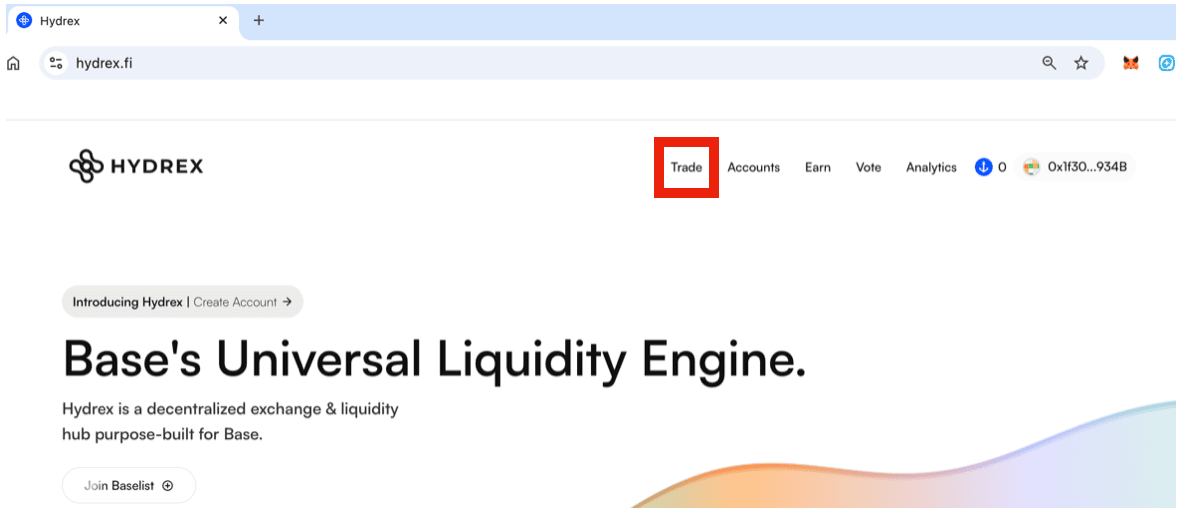
4. Buy THEO
1
Choose the token to sell
In the Sell field, choose the token you want to use to buy THEO (e.g. USDC).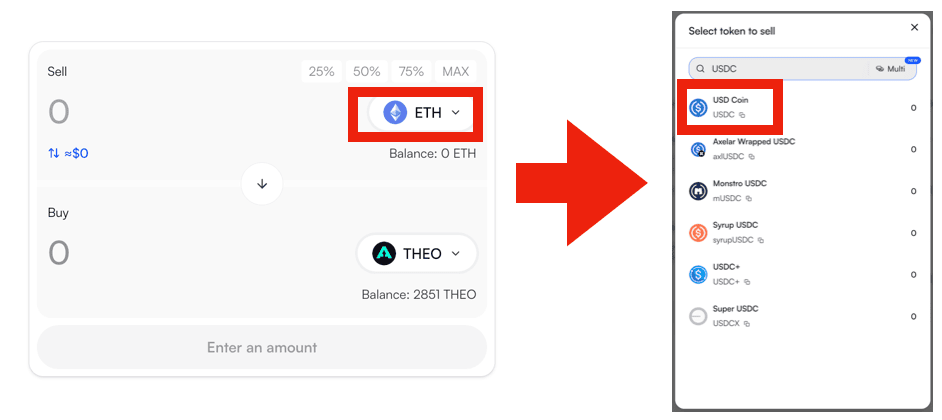
2
Choose THEO in the Buy field
In the Buy field, choose THEO. Verify the contract address by copying it (using the overlapping-squares copy icon) and checking it matches 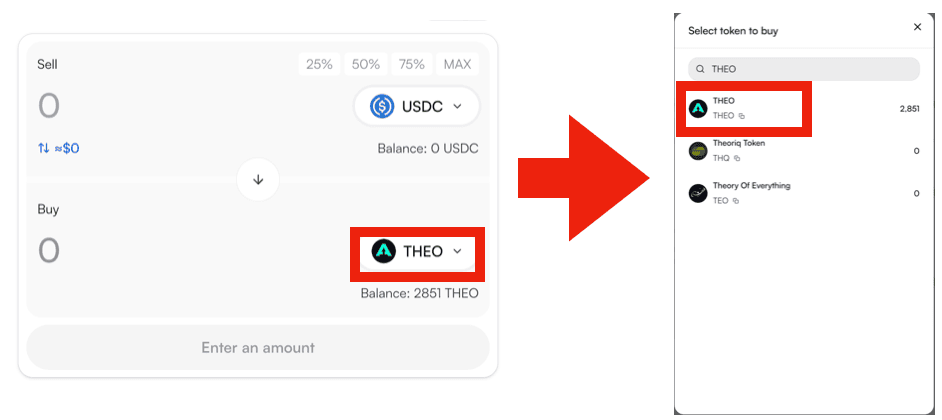
0xebE516a20238F79DC20b07eaD6768e08891Ed309.3
Confirm the trade
Enter the amount you want to buy, then confirm the transaction. This triggers a wallet pop-up for signing — approve it to complete the purchase.
5. Sell or trade THEO
1
Choose THEO as the token to sell
In the Sell field, choose THEO.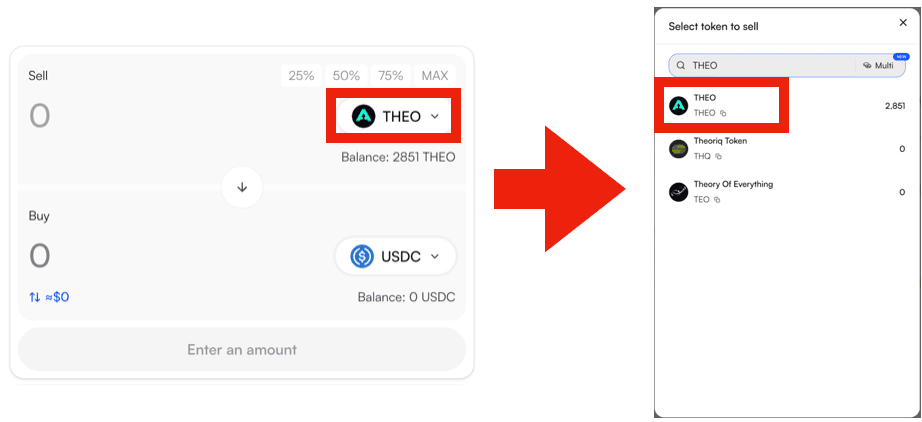
2
Choose the token to buy
In the Buy field, choose the token you want to receive (e.g. USDC).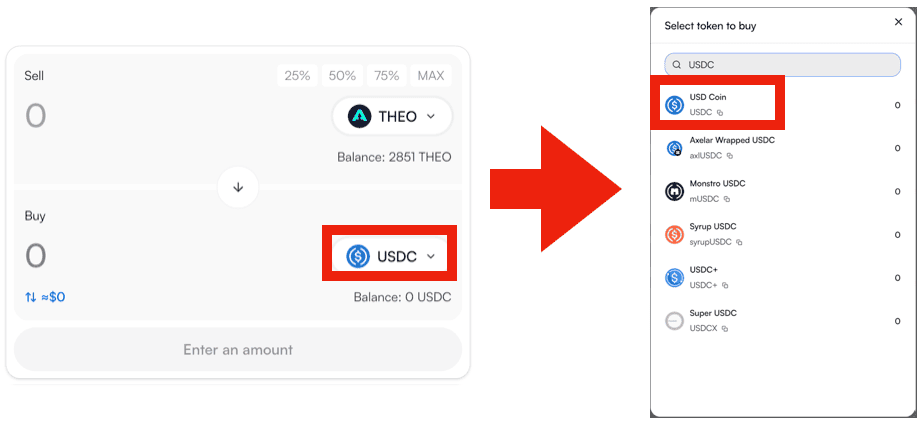
3
Confirm the trade
Enter the amount you want to sell, then confirm the transaction. This triggers a wallet pop-up for signing — approve it to complete the trade.
Hydrex is an independent, third-party decentralized exchange built on Base and is not owned or operated by Autheo. Trading on Hydrex is subject to Hydrex’s own terms — review Hydrex’s Terms of Service before trading.