> ## Documentation Index
> Fetch the complete documentation index at: https://docs.autheo.com/llms.txt
> Use this file to discover all available pages before exploring further.
# Deploying a node
> How to configure and deploy a Sovereign validator node through the Autheo Validator Portal, including region selection, Stripe checkout, and validator field definitions.
The Node Deployment page guides you through configuring and launching a new Sovereign validator node. Deployment requires a Sovereign license and a monthly node subscription paid via Stripe.
For pricing context, see [Hosting options](/validator-program/hosting-options).
 ## Deployment flow
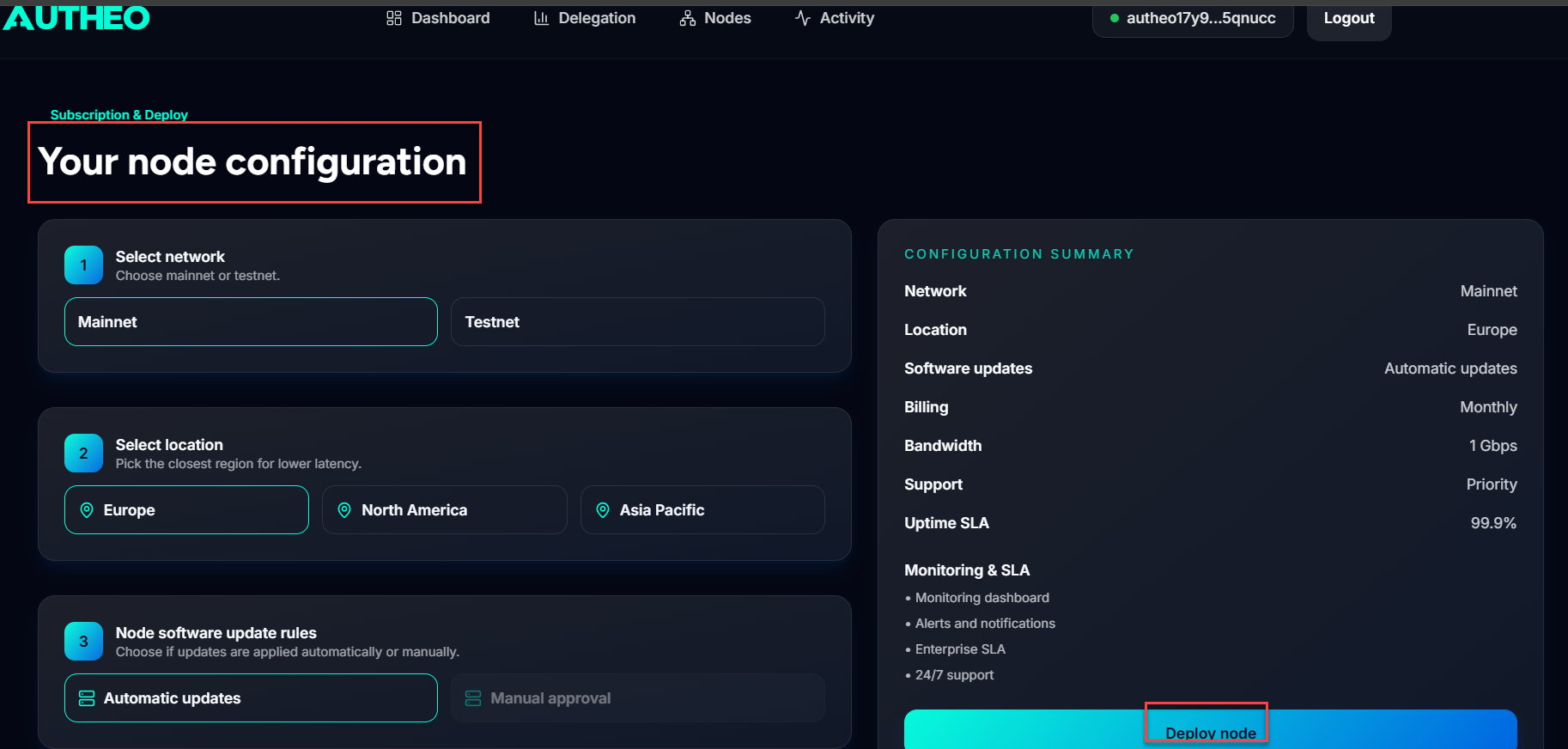
Choose the network for your node:
| Option | Description |
| ------- | ------------------------------------------------ |
| Mainnet | The production Autheo network |
| Testnet | The test environment for development and testing |
Choose your preferred data center region:
| Option | Description |
| ------------- | --------------------------------------- |
| Europe | Data centers in the European region |
| North America | Data centers in North America |
| Asia Pacific | Data centers in the Asia-Pacific region |
Select the region closest to your primary user base for lower network latency.
| Option | Description |
| ----------------- | ----------------------------------------------------------------------------- |
| Automatic updates | Updates are applied automatically as they become available (recommended) |
| Manual approval | You manually approve each update before it is applied (currently unavailable) |
The summary panel shows your selected configuration plus included service details:
| Item | Value |
| ---------- | -------- |
| Billing | Monthly |
| Bandwidth | 1 Gbps |
| Support | Priority |
| Uptime SLA | 99.9% |
Additional included services: monitoring dashboard, alerts and notifications, enterprise SLA, and 24/7 support.
1. Complete all three configuration steps and click **Deploy node**
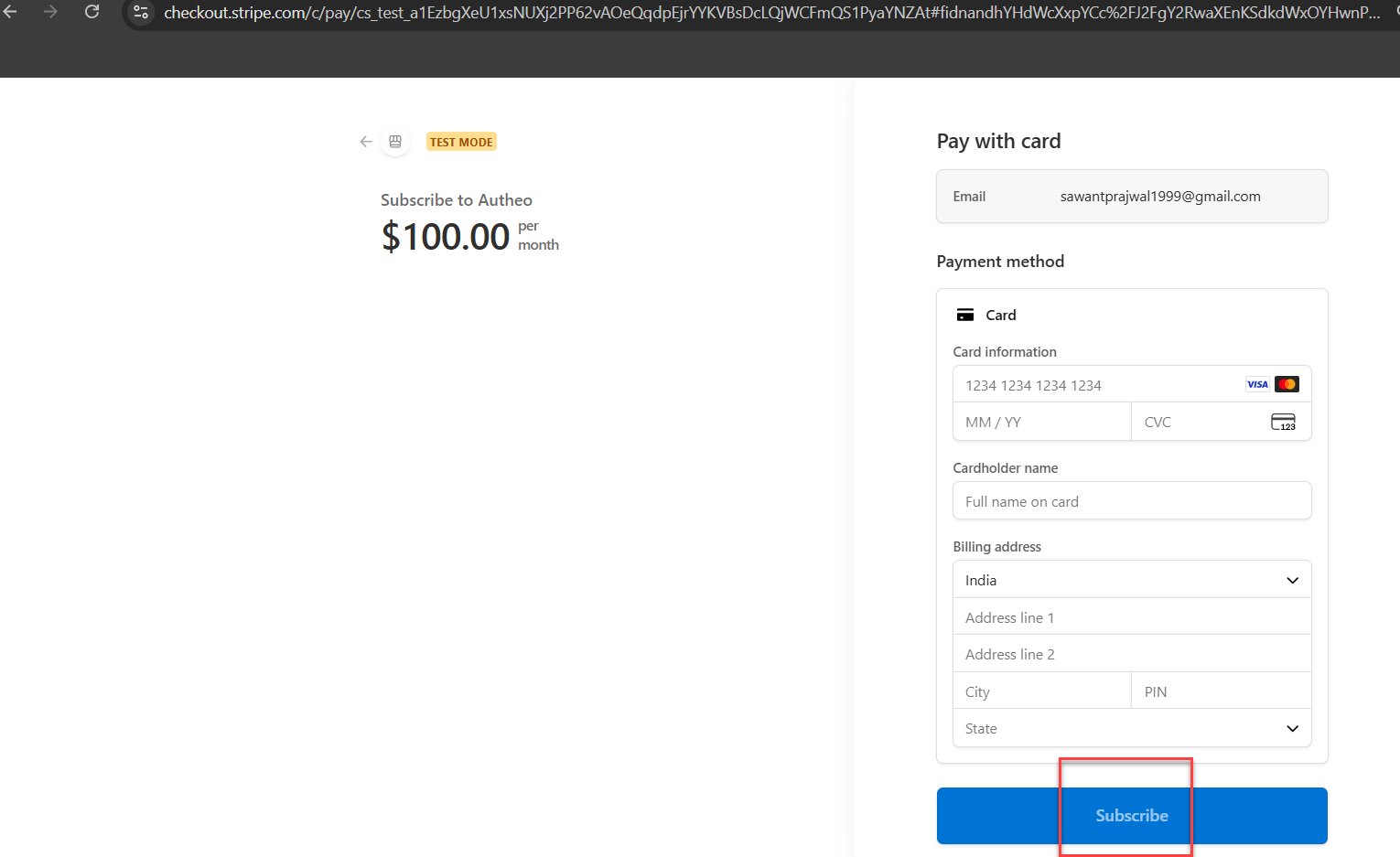
2. The portal creates a checkout session and redirects you to **Stripe** for secure payment
3. Complete payment on Stripe to activate your node subscription
4. After payment, your new node appears in the Dashboard with **Provisioning** status
## Deployment flow
Choose the network for your node:
| Option | Description |
| ------- | ------------------------------------------------ |
| Mainnet | The production Autheo network |
| Testnet | The test environment for development and testing |
Choose your preferred data center region:
| Option | Description |
| ------------- | --------------------------------------- |
| Europe | Data centers in the European region |
| North America | Data centers in North America |
| Asia Pacific | Data centers in the Asia-Pacific region |
Select the region closest to your primary user base for lower network latency.
| Option | Description |
| ----------------- | ----------------------------------------------------------------------------- |
| Automatic updates | Updates are applied automatically as they become available (recommended) |
| Manual approval | You manually approve each update before it is applied (currently unavailable) |
The summary panel shows your selected configuration plus included service details:
| Item | Value |
| ---------- | -------- |
| Billing | Monthly |
| Bandwidth | 1 Gbps |
| Support | Priority |
| Uptime SLA | 99.9% |
Additional included services: monitoring dashboard, alerts and notifications, enterprise SLA, and 24/7 support.
1. Complete all three configuration steps and click **Deploy node**
2. The portal creates a checkout session and redirects you to **Stripe** for secure payment
3. Complete payment on Stripe to activate your node subscription
4. After payment, your new node appears in the Dashboard with **Provisioning** status
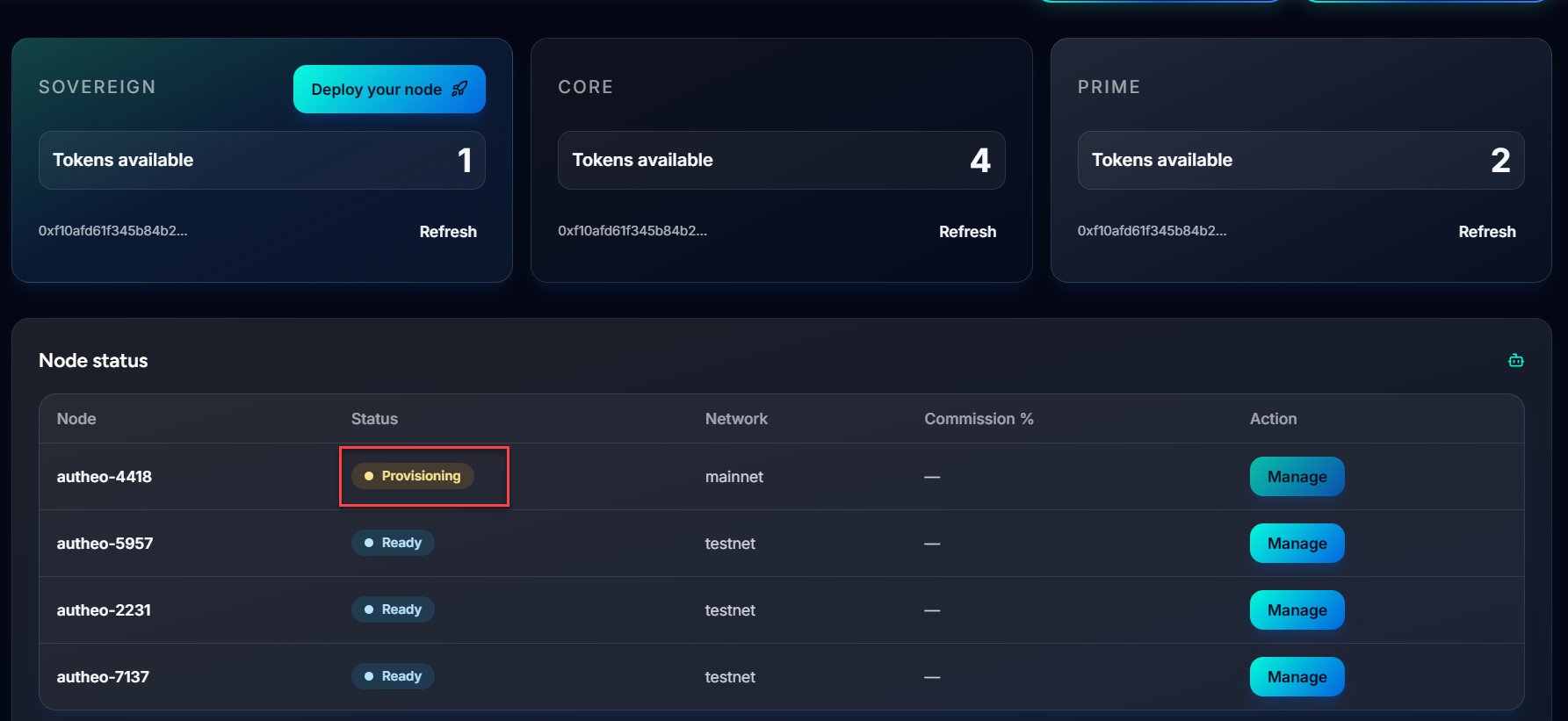
 Once provisioning completes, the node status changes to **Ready**. The **Manage** button becomes available in the Dashboard node table.
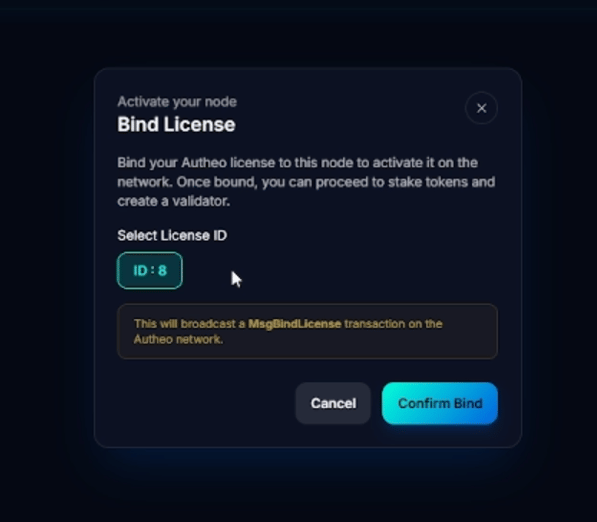
Click **Manage** to bind your Sovereign license to the node. This links the license to your validator.
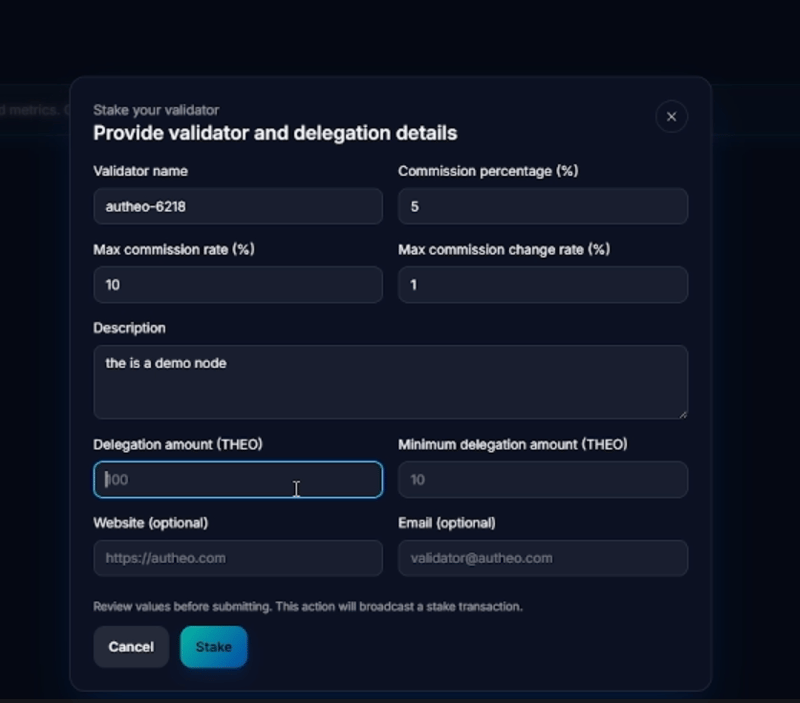
After binding your Sovereign license, stake (self-delegate) THEO tokens to move your node to **Active** status.
Your node does not participate in consensus and does not earn rewards until it reaches **Active** status.
## Validator configuration fields
When completing the validator setup after binding your license, you will fill in the following fields:
| Field | Description |
| ------------------------------------ | --------------------------------------------------------------------------------------------------------------------------------------------------------------------------------------------- |
| **Validator Name** | A unique name to identify your validator on the network. Should be descriptive and recognizable — typically includes your brand or node identifier. |
| **Commission Percentage (%)** | The percentage of staking rewards charged to delegators as a fee. Example: at 5% commission, a delegator earning 100 THEO pays you 5 THEO. |
| **Max Commission Rate (%)** | The maximum commission you are ever allowed to charge. **This value is permanent after validator creation** — you cannot increase your commission beyond this limit. |
| **Max Commission Change Rate (%)** | The maximum percentage by which you can increase your commission per day. Protects delegators from sudden fee increases. Example: at 1%, you can raise your commission by at most 1% per day. |
| **Description** | A short description of your validator — can include uptime guarantees, branding, or technical details. Helps delegators evaluate your validator. |
| **Delegation Amount (THEO)** | Your self-delegation amount. Demonstrates commitment to the network. Must be within your wallet balance. Higher amounts increase delegator trust. |
| **Minimum Delegation Amount (THEO)** | The minimum amount other users must delegate to your validator. Prevents spam delegations. Example: set to 10 THEO to require at least 10 THEO per delegation. |
| **Website (optional)** | A link to your validator's website — provides additional information and credibility. |
| **Email (optional)** | A contact email for your validator — allows delegators or partners to reach out. |
Once provisioning completes, the node status changes to **Ready**. The **Manage** button becomes available in the Dashboard node table.
Click **Manage** to bind your Sovereign license to the node. This links the license to your validator.
After binding your Sovereign license, stake (self-delegate) THEO tokens to move your node to **Active** status.
Your node does not participate in consensus and does not earn rewards until it reaches **Active** status.
## Validator configuration fields
When completing the validator setup after binding your license, you will fill in the following fields:
| Field | Description |
| ------------------------------------ | --------------------------------------------------------------------------------------------------------------------------------------------------------------------------------------------- |
| **Validator Name** | A unique name to identify your validator on the network. Should be descriptive and recognizable — typically includes your brand or node identifier. |
| **Commission Percentage (%)** | The percentage of staking rewards charged to delegators as a fee. Example: at 5% commission, a delegator earning 100 THEO pays you 5 THEO. |
| **Max Commission Rate (%)** | The maximum commission you are ever allowed to charge. **This value is permanent after validator creation** — you cannot increase your commission beyond this limit. |
| **Max Commission Change Rate (%)** | The maximum percentage by which you can increase your commission per day. Protects delegators from sudden fee increases. Example: at 1%, you can raise your commission by at most 1% per day. |
| **Description** | A short description of your validator — can include uptime guarantees, branding, or technical details. Helps delegators evaluate your validator. |
| **Delegation Amount (THEO)** | Your self-delegation amount. Demonstrates commitment to the network. Must be within your wallet balance. Higher amounts increase delegator trust. |
| **Minimum Delegation Amount (THEO)** | The minimum amount other users must delegate to your validator. Prevents spam delegations. Example: set to 10 THEO to require at least 10 THEO per delegation. |
| **Website (optional)** | A link to your validator's website — provides additional information and credibility. |
| **Email (optional)** | A contact email for your validator — allows delegators or partners to reach out. |