> ## Documentation Index
> Fetch the complete documentation index at: https://docs.autheo.com/llms.txt
> Use this file to discover all available pages before exploring further.
# Order history and NFT import
> View your node license purchase history, track referral commissions, and import your NFT into MetaMask.
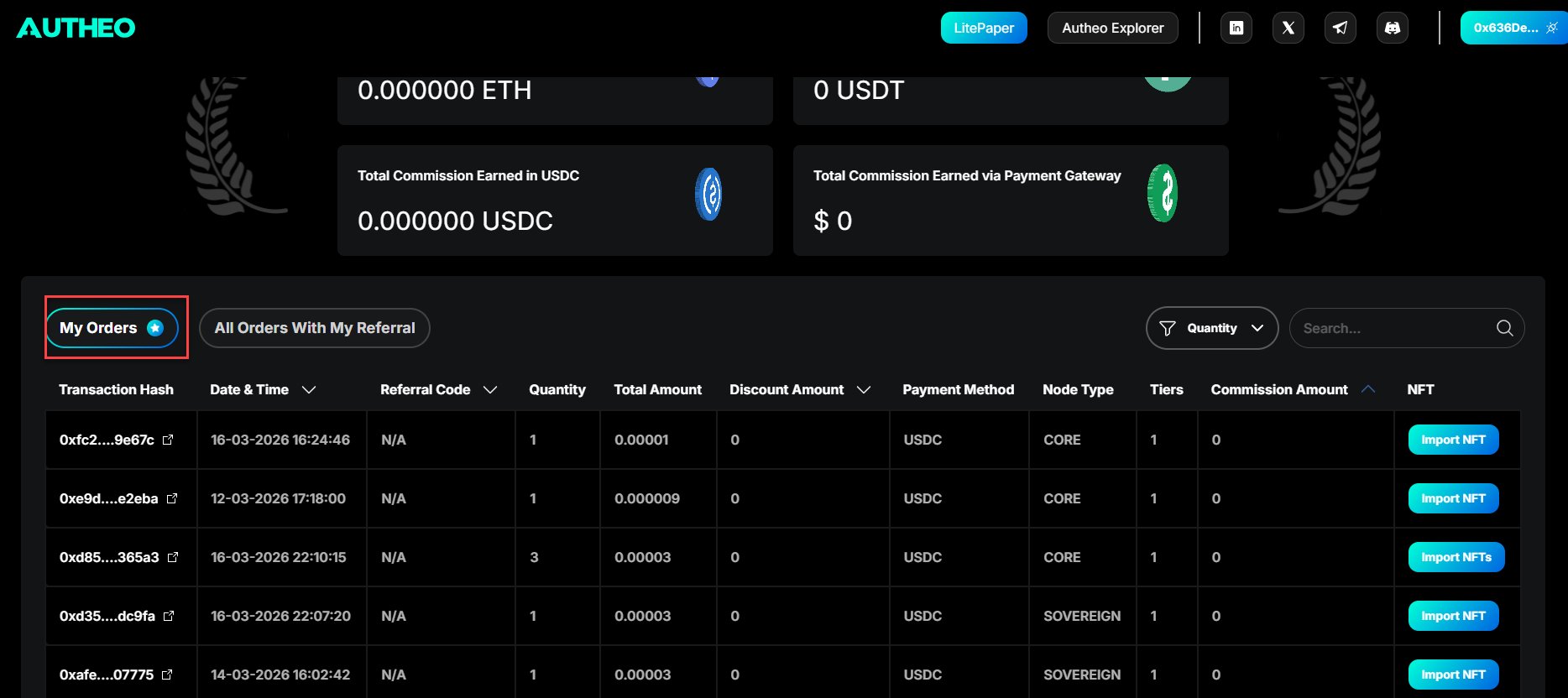
The Orders tab (`/orders`) provides a complete history of all purchases and referral activity associated with your connected wallet.
## My Orders tab
Displays all node license purchases made by your connected wallet address.
| Column | Description |
| ----------------- | ----------------------------------------------------------------- |
| Transaction Hash | Blockchain transaction hash — click to view in the block explorer |
| Date & Time | Date and time of the order |
| Referral Code | The referral code used for this order, if any |
| Quantity | Number of licenses purchased |
| Total Amount | Total amount paid |
| Discount Amount | Discount applied if a referral code was used |
| Payment Method | ETH, USDT, USDC, or FIAT |
| Node Type | Core, Prime, or Sovereign |
| Tier | Pricing tier at the time of purchase |
| Commission Amount | Commission applied if a referral code was used |
| NFT | Button to manually import the NFT into your wallet |
 ## All Orders With My Referral tab
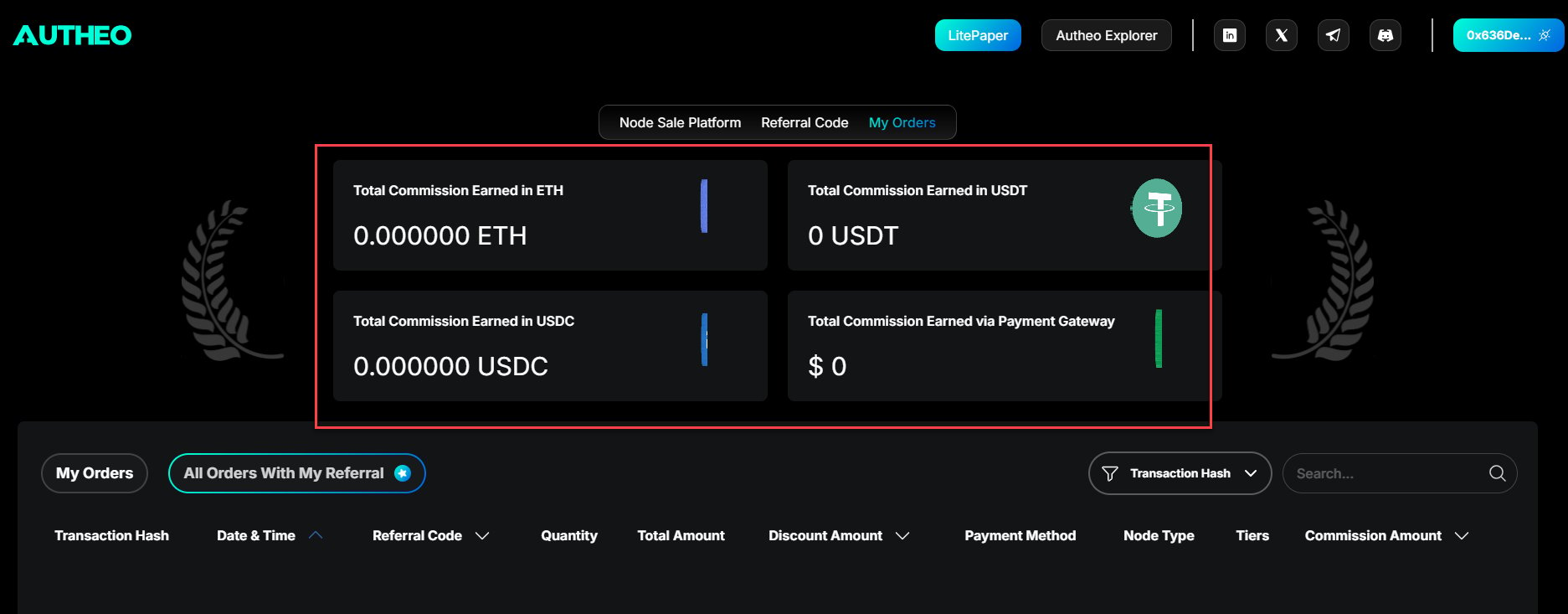
Displays all purchases made by others using your referral code.
**Commission summary tiles** at the top show total commissions earned:
* Total commission earned in ETH
* Total commission earned in USDT
* Total commission earned in USDC
* Total commission earned via payment gateway
**Table controls** — Use the search bar to filter by address, transaction hash, or referral code. Click column headers to sort. Use the page controls at the bottom to paginate.
## All Orders With My Referral tab
Displays all purchases made by others using your referral code.
**Commission summary tiles** at the top show total commissions earned:
* Total commission earned in ETH
* Total commission earned in USDT
* Total commission earned in USDC
* Total commission earned via payment gateway
**Table controls** — Use the search bar to filter by address, transaction hash, or referral code. Click column headers to sort. Use the page controls at the bottom to paginate.
 ## Importing your NFT into MetaMask
After purchasing a node license, import the NFT into MetaMask to make it visible in your wallet.
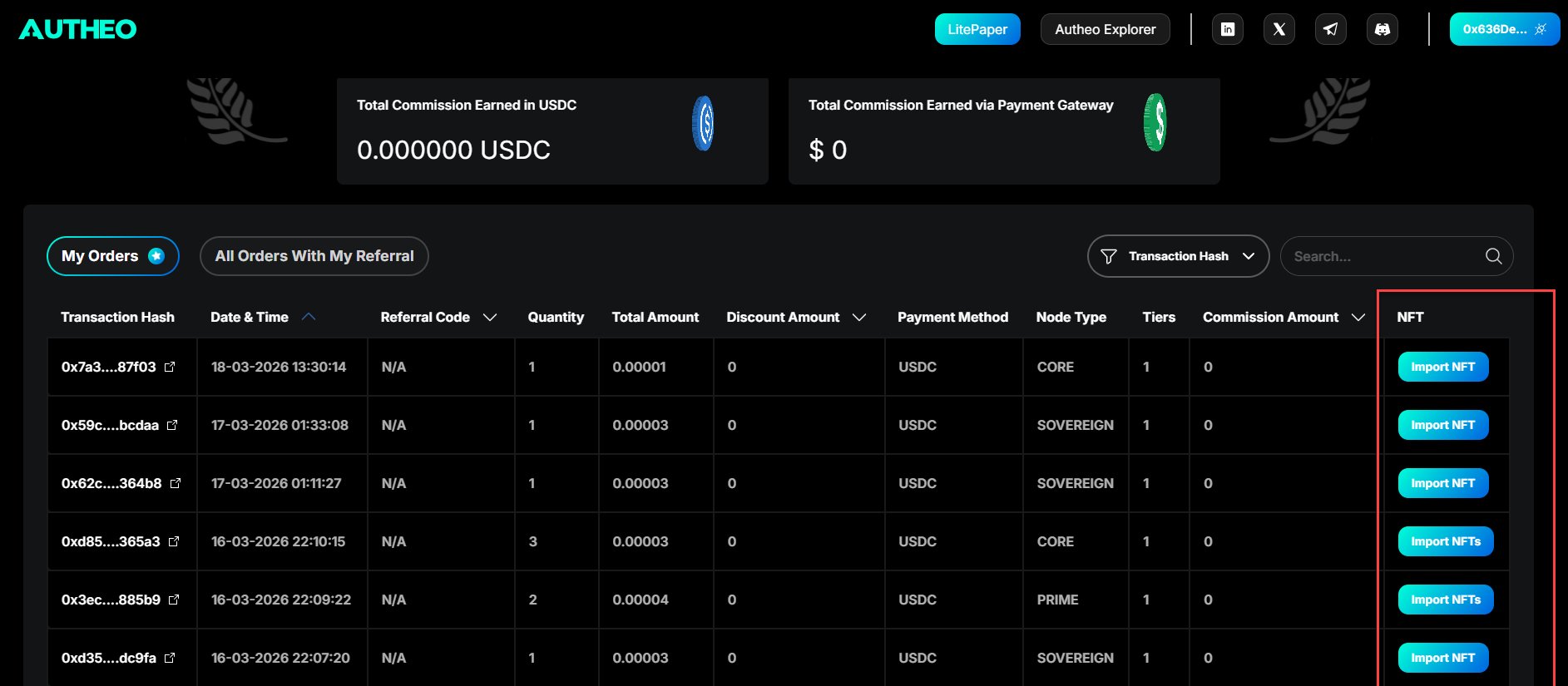
Navigate to the **My Orders** tab from the main navigation.
Locate the order containing the NFT you want to import and expand the row.
Click the **Import NFT** button next to the NFT's token ID.
MetaMask will switch to Arbitrum Sepolia if needed and prompt you to add the ERC-721 token. Click **Add**.
## Importing your NFT into MetaMask
After purchasing a node license, import the NFT into MetaMask to make it visible in your wallet.
Navigate to the **My Orders** tab from the main navigation.
Locate the order containing the NFT you want to import and expand the row.
Click the **Import NFT** button next to the NFT's token ID.
MetaMask will switch to Arbitrum Sepolia if needed and prompt you to add the ERC-721 token. Click **Add**.
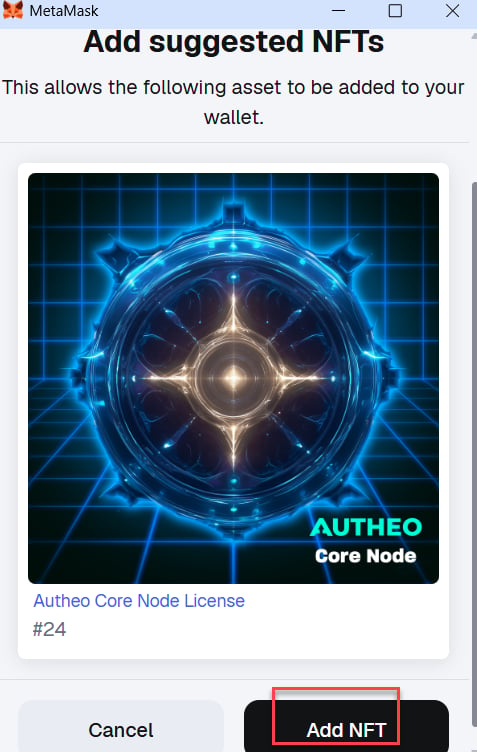
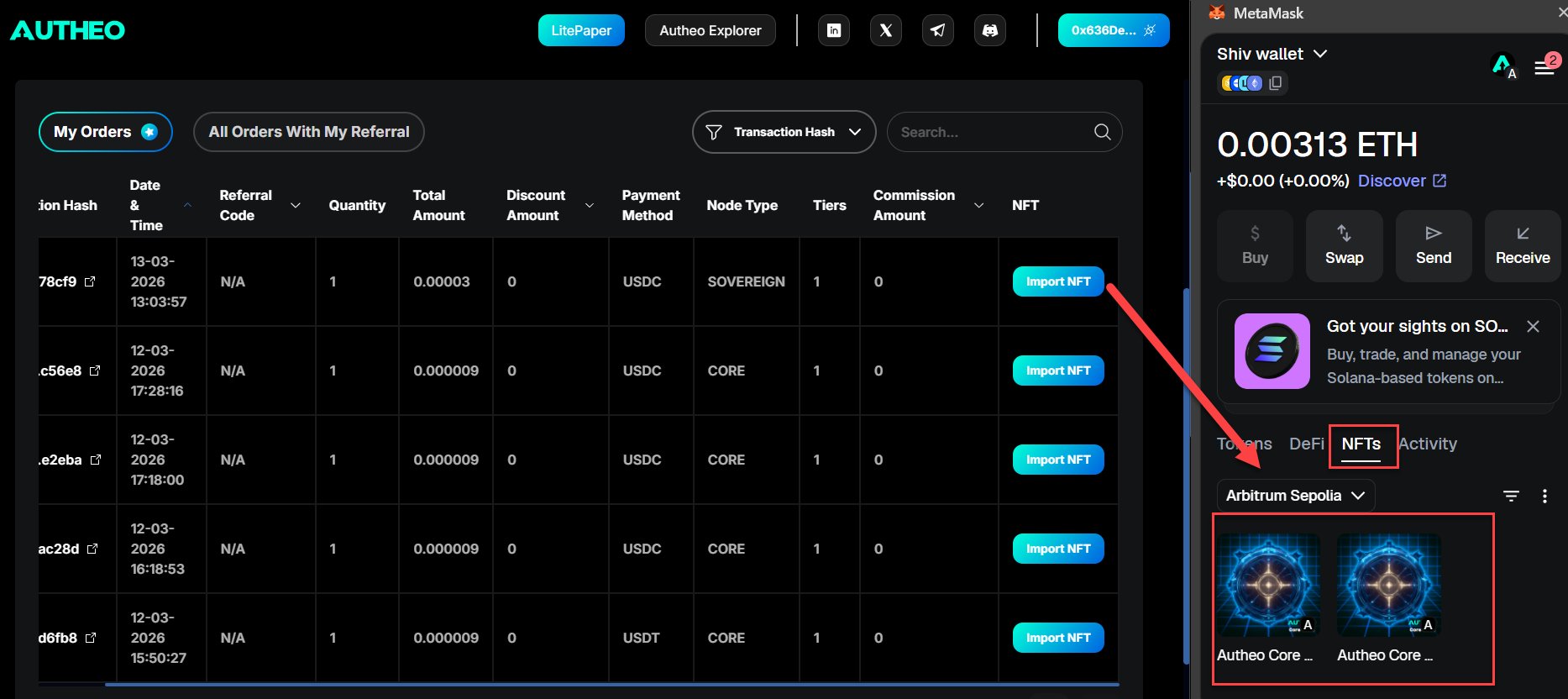 The NFT will appear in MetaMask under the **NFTs** tab with one of these symbols:
| Symbol | License type |
| ------------------ | ---------------------- |
| `AUTHEO-CORE` | Core node license |
| `AUTHEO-PRIME` | Prime node license |
| `AUTHEO-SOVEREIGN` | Sovereign node license |
## Next steps
Once your NFT is visible in MetaMask, the next step is to bridge it from Arbitrum to your Autheo Chain address. See the [Autheo Bridge](/web-apps/bridge/making-a-transfer) guide, or the full [license setup walkthrough](/nodes/node-setup/license-setup) for the complete on-chain binding process.
The NFT will appear in MetaMask under the **NFTs** tab with one of these symbols:
| Symbol | License type |
| ------------------ | ---------------------- |
| `AUTHEO-CORE` | Core node license |
| `AUTHEO-PRIME` | Prime node license |
| `AUTHEO-SOVEREIGN` | Sovereign node license |
## Next steps
Once your NFT is visible in MetaMask, the next step is to bridge it from Arbitrum to your Autheo Chain address. See the [Autheo Bridge](/web-apps/bridge/making-a-transfer) guide, or the full [license setup walkthrough](/nodes/node-setup/license-setup) for the complete on-chain binding process.