> ## Documentation Index
> Fetch the complete documentation index at: https://docs.autheo.com/llms.txt
> Use this file to discover all available pages before exploring further.
# Making a transfer
> Step-by-step guide to bridging tokens between chains using the Autheo Bridge, including the transfer form, token approvals, and tracking delivery.
This page covers the Bridge interface layout and the complete flow for making a cross-chain token transfer.
## Bridge interface
The Bridge has a clean, single-page layout with four main areas:
**Header** — Application logo and the Connect Wallet button showing connection status.
**Transfer Token Form** — The central card and primary interface for initiating transfers:
| Element | Description |
| ---------------------- | ------------------------------------------------------------------ |
| From (Source Chain) | Dropdown selector for the originating blockchain |
| To (Destination Chain) | Dropdown selector for the target blockchain |
| Swap button | Arrow icon (↕) to quickly swap source and destination |
| Token selector | Dropdown to choose which token to bridge |
| Token ID / Amount | Numeric input with a **Max** button to auto-fill your full balance |
| My NFT Balance | Your current token balance on the source chain |
| Recipient address | Text input for the destination wallet address |
| Remote balance | Recipient's current balance on the destination chain |
| Continue button | Proceeds to review mode |
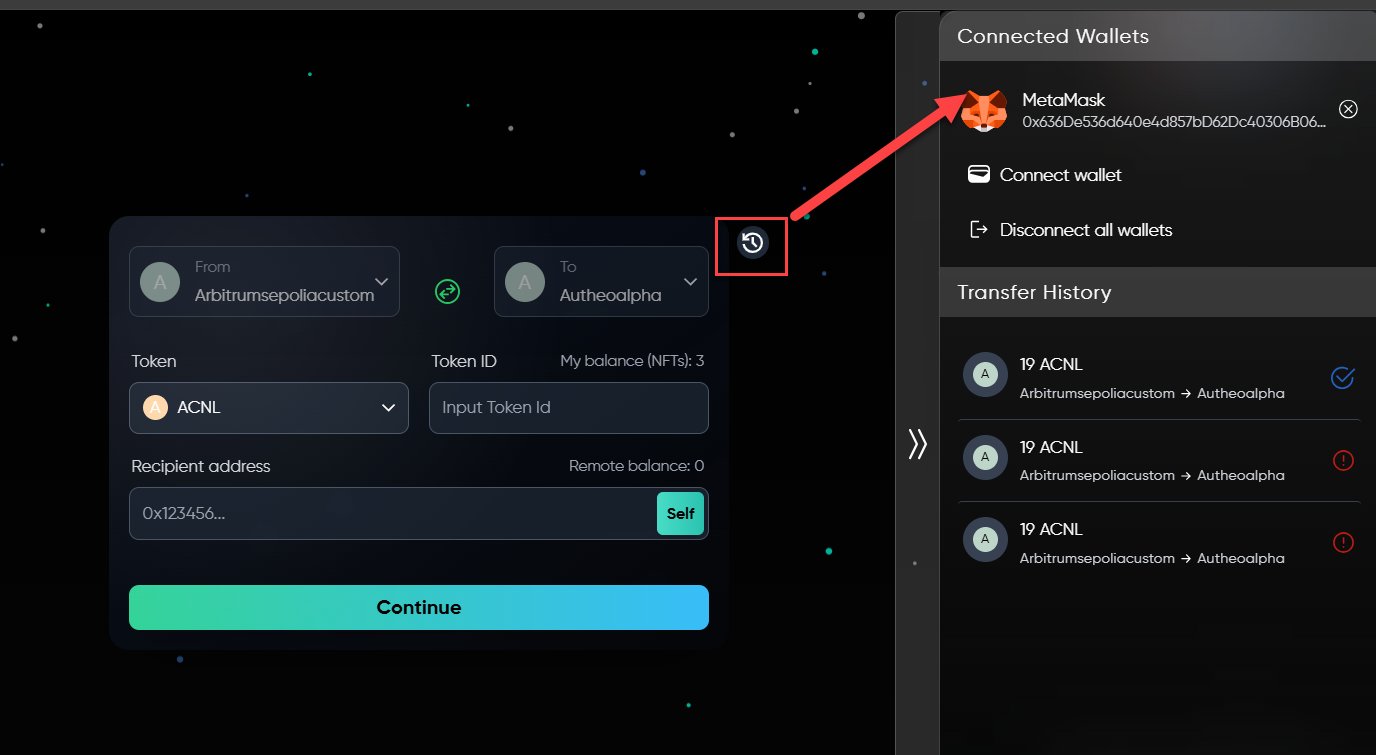
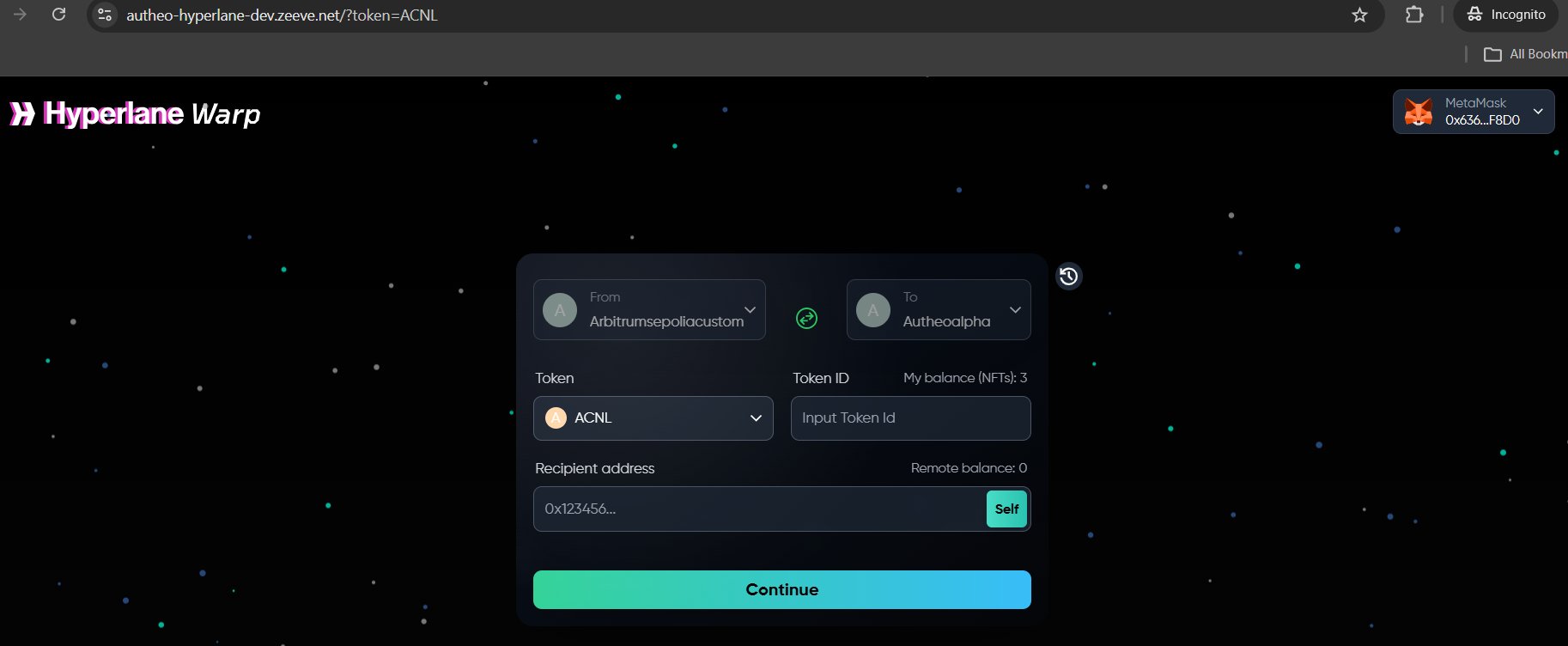 **Floating action buttons** — The clock icon opens the sidebar with transfer history and connected wallets.
 **Footer** — Links to Hyperlane documentation, Discord, GitHub, Twitter/X, Blog, Terms of Service, and Privacy Policy.
 ## Transferring tokens
Click the **From** dropdown. A searchable chain selection modal appears. Select your source chain (e.g., Arbitrum Sepolia).
## Transferring tokens
Click the **From** dropdown. A searchable chain selection modal appears. Select your source chain (e.g., Arbitrum Sepolia).
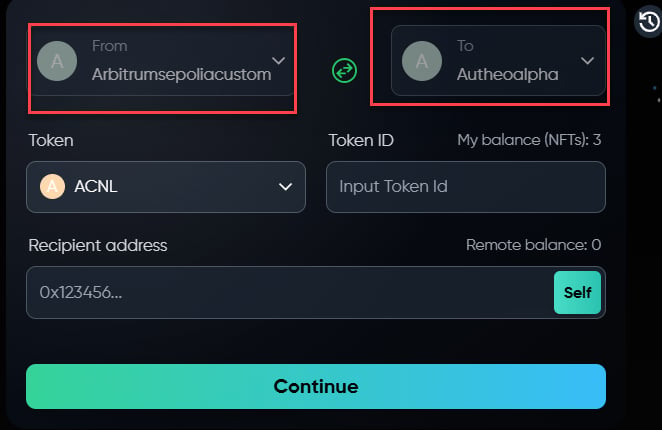 Click the **To** dropdown and select the target chain (e.g., Autheo Alpha). The same chain selection modal is used for both source and destination.
Use the swap icon (↕) between the chain selectors to quickly reverse the direction.
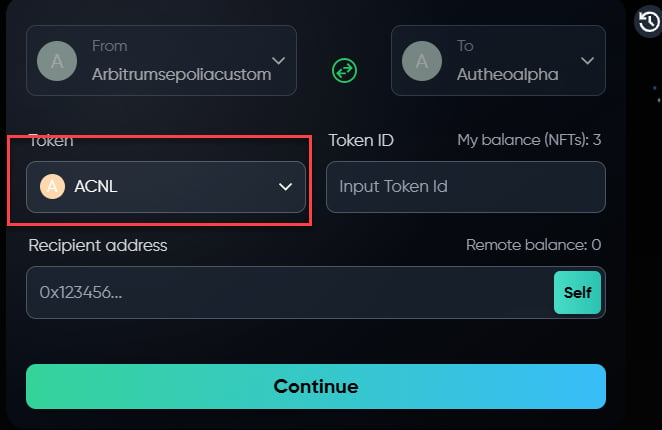
1. Click the **Token selector**
2. A modal opens showing available tokens for the selected route
3. Search by token name, symbol, or contract address
4. Click the desired token
Tokens that appear dimmed are currently disabled. If only one token is available on a route, it is auto-selected.
Click the **To** dropdown and select the target chain (e.g., Autheo Alpha). The same chain selection modal is used for both source and destination.
Use the swap icon (↕) between the chain selectors to quickly reverse the direction.
1. Click the **Token selector**
2. A modal opens showing available tokens for the selected route
3. Search by token name, symbol, or contract address
4. Click the desired token
Tokens that appear dimmed are currently disabled. If only one token is available on a route, it is auto-selected.
 Type the token ID (for NFTs) or amount in the input field. Your available balance is shown as **My balance**.
Click **Max** to auto-fill your full available balance.
Enter the destination wallet address in the **Recipient address** field. The application displays the recipient's current balance on the destination chain.
Type the token ID (for NFTs) or amount in the input field. Your available balance is shown as **My balance**.
Click **Max** to auto-fill your full available balance.
Enter the destination wallet address in the **Recipient address** field. The application displays the recipient's current balance on the destination chain.
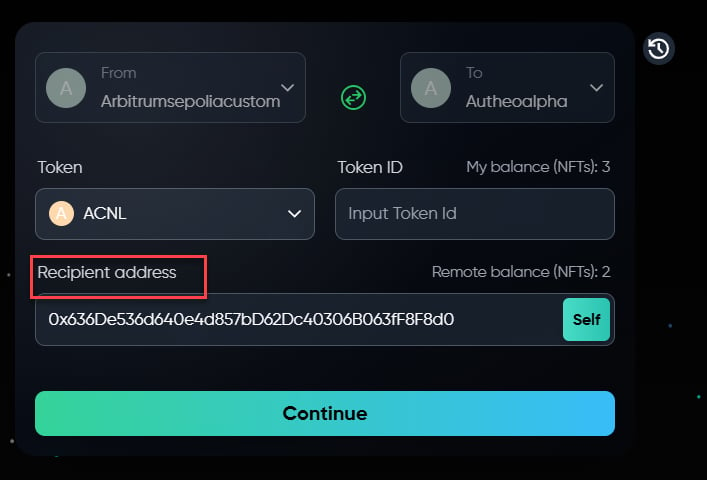 1. Click **Continue** to enter review mode
2. Verify all details: source and destination chains, token type and amount, recipient address, and estimated interchain gas fees
3. Click **Cancel** to go back and correct anything, or **Send** to proceed
If the recipient address differs from your connected wallet, a confirmation modal appears asking you to verify.
1. Click **Continue** to enter review mode
2. Verify all details: source and destination chains, token type and amount, recipient address, and estimated interchain gas fees
3. Click **Cancel** to go back and correct anything, or **Send** to proceed
If the recipient address differs from your connected wallet, a confirmation modal appears asking you to verify.
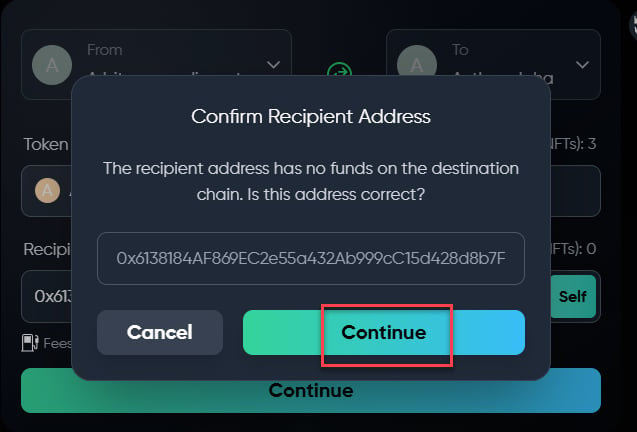 Depending on the token type, you may need to sign one or two transactions:
| Transaction | When required | Purpose |
| -------------------- | --------------------------------- | --------------------------------------------------------------------------- |
| Token approval | First transfer of an ERC-20 token | Grants the warp route contract permission to transfer tokens on your behalf |
| Transfer transaction | Every transfer | Executes the cross-chain token transfer |
The UI shows a step-by-step status progression:
1. Preparing
2. Creating transactions
3. Signing approval
4. Confirming approval
5. Signing transfer
6. Confirming transfer
Depending on the token type, you may need to sign one or two transactions:
| Transaction | When required | Purpose |
| -------------------- | --------------------------------- | --------------------------------------------------------------------------- |
| Token approval | First transfer of an ERC-20 token | Grants the warp route contract permission to transfer tokens on your behalf |
| Transfer transaction | Every transfer | Executes the cross-chain token transfer |
The UI shows a step-by-step status progression:
1. Preparing
2. Creating transactions
3. Signing approval
4. Confirming approval
5. Signing transfer
6. Confirming transfer
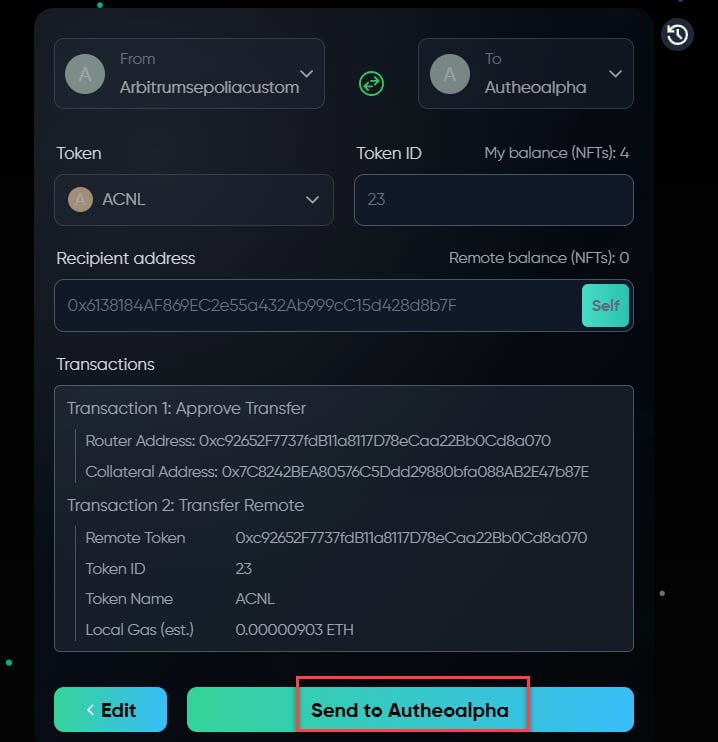
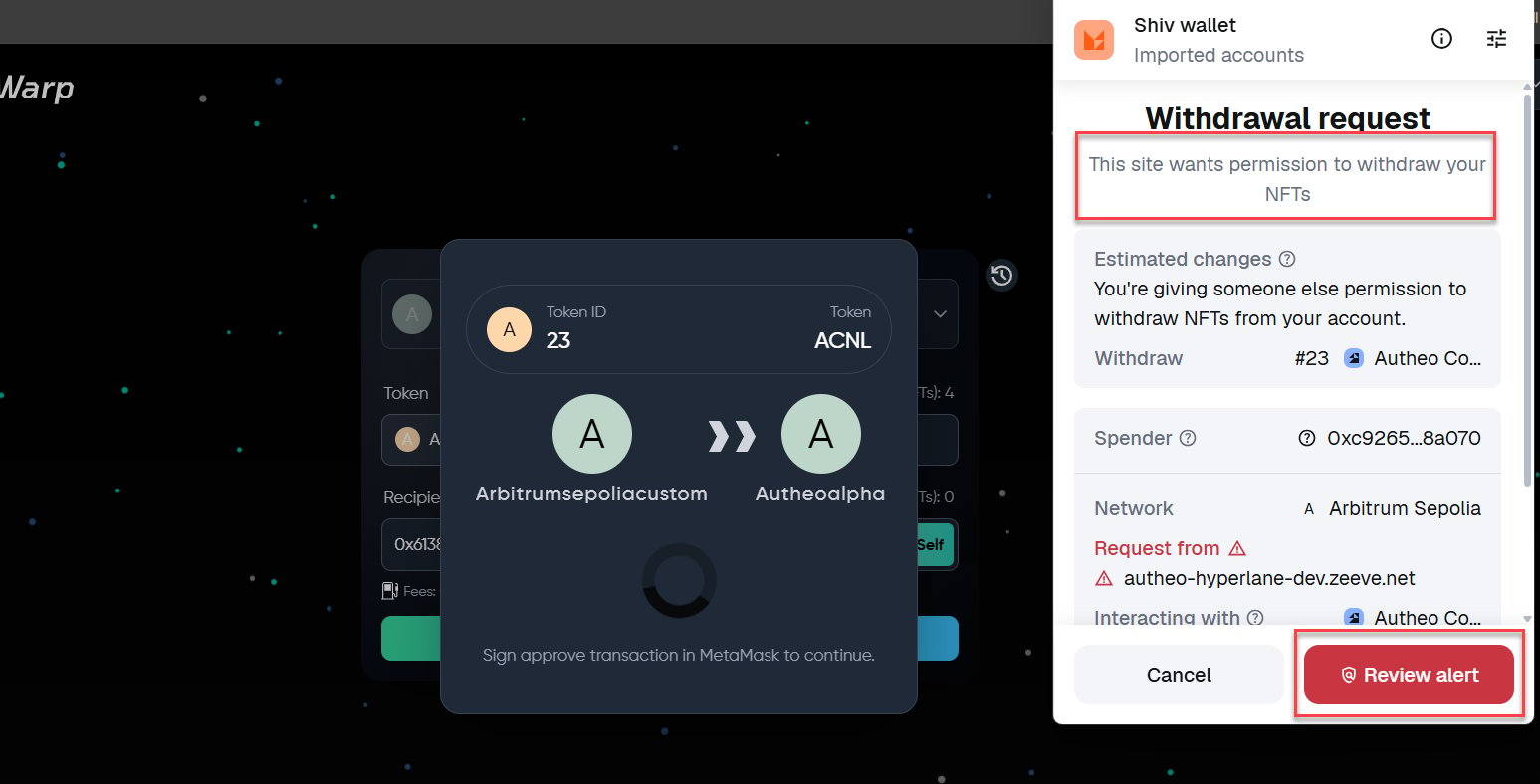
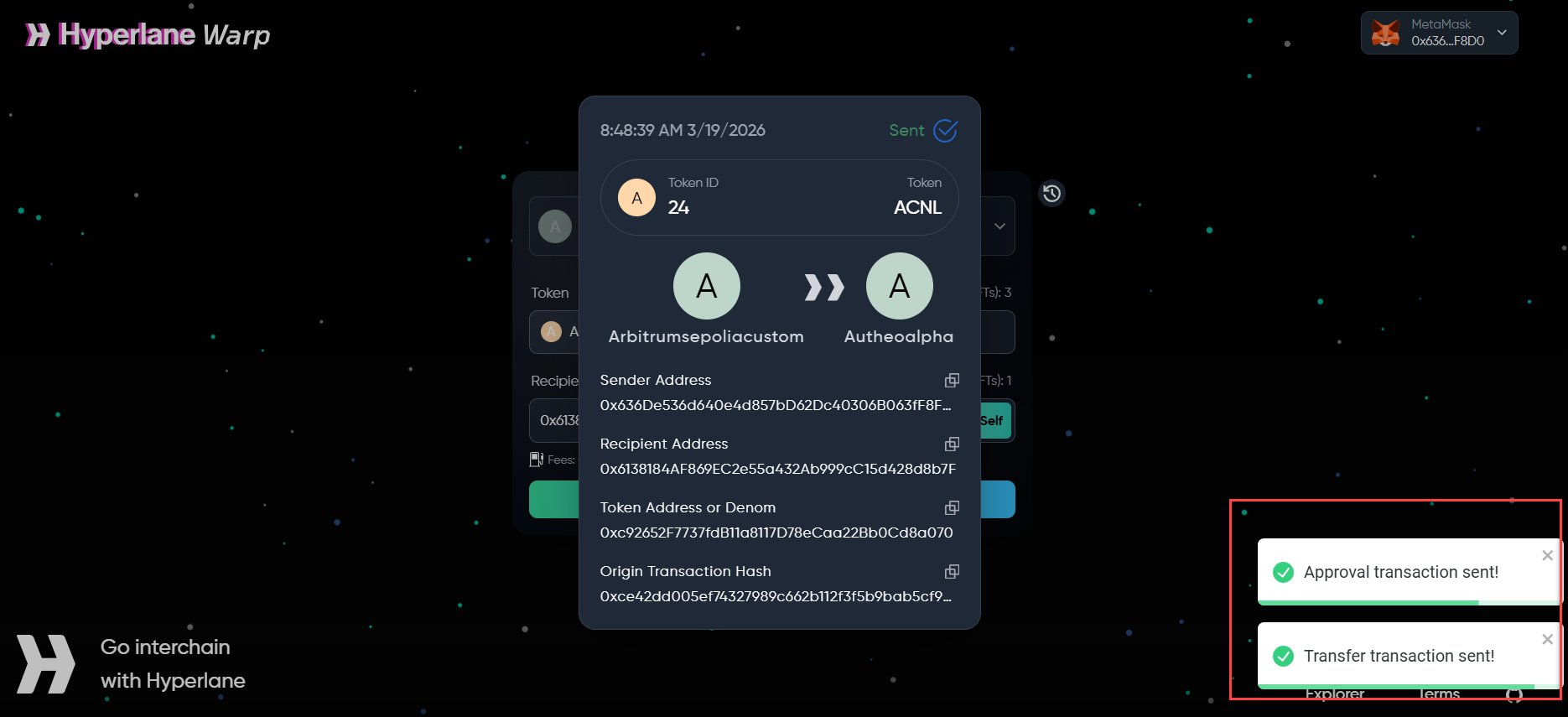
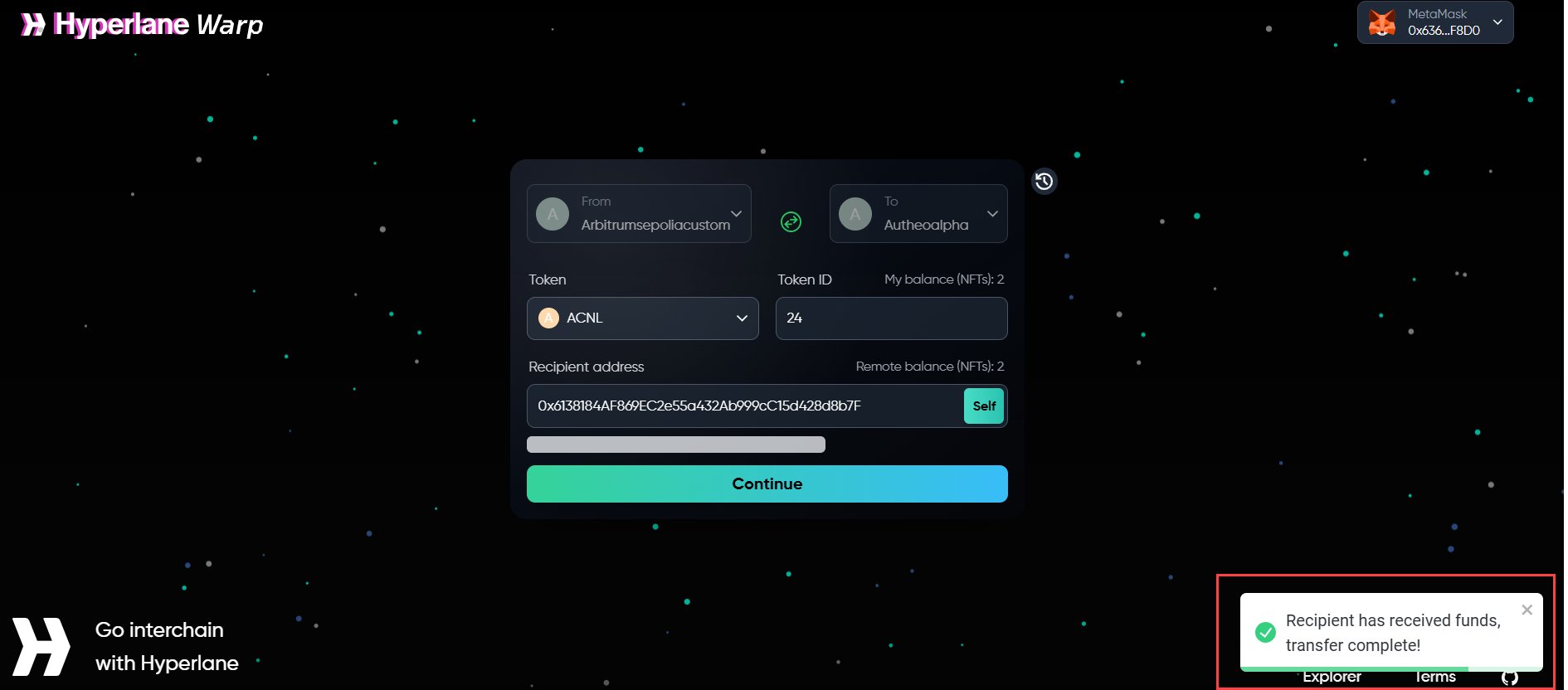 Do not close the browser tab or navigate away while waiting for confirmation.
After the source chain confirms:
* A success notification appears
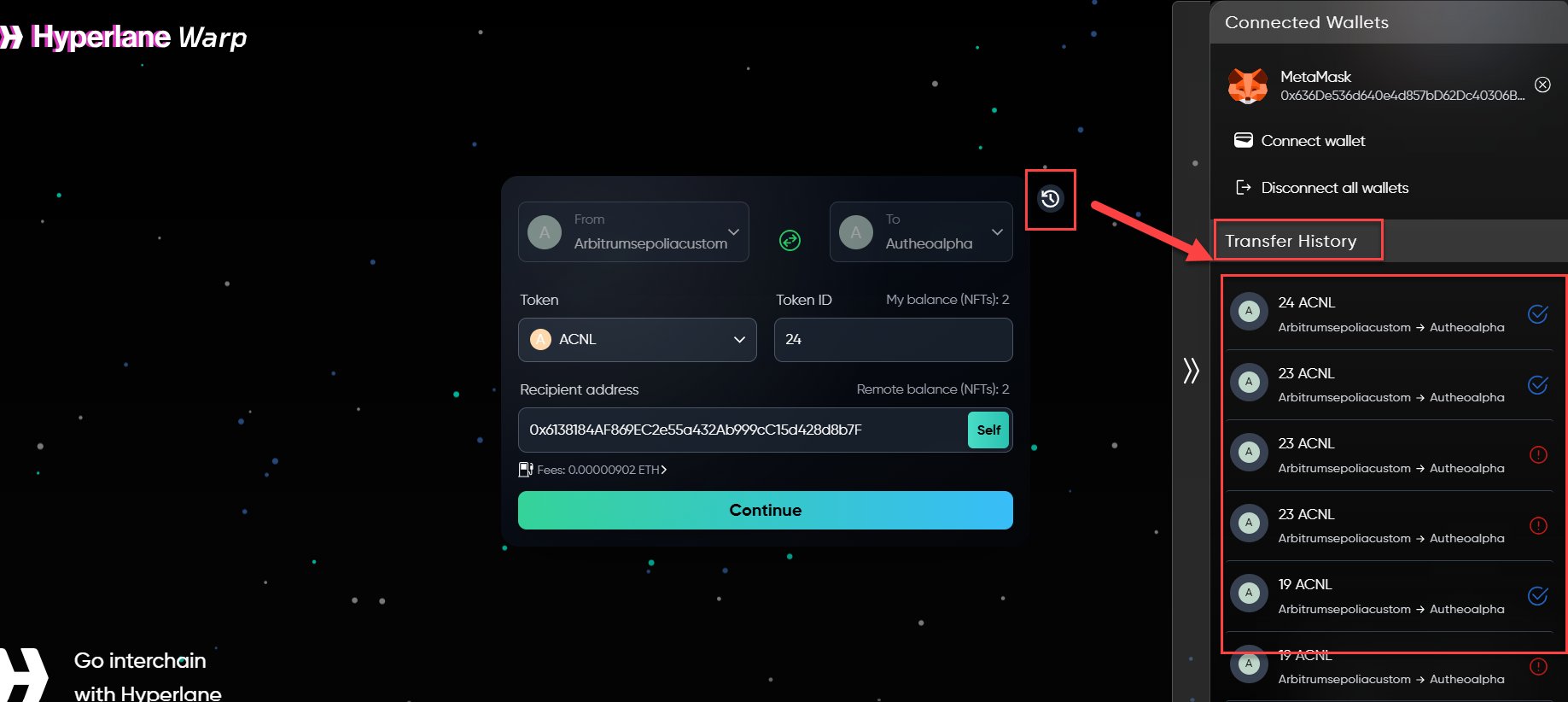
* The transfer is added to your Transfer History
* The Hyperlane protocol relays the message to the destination chain
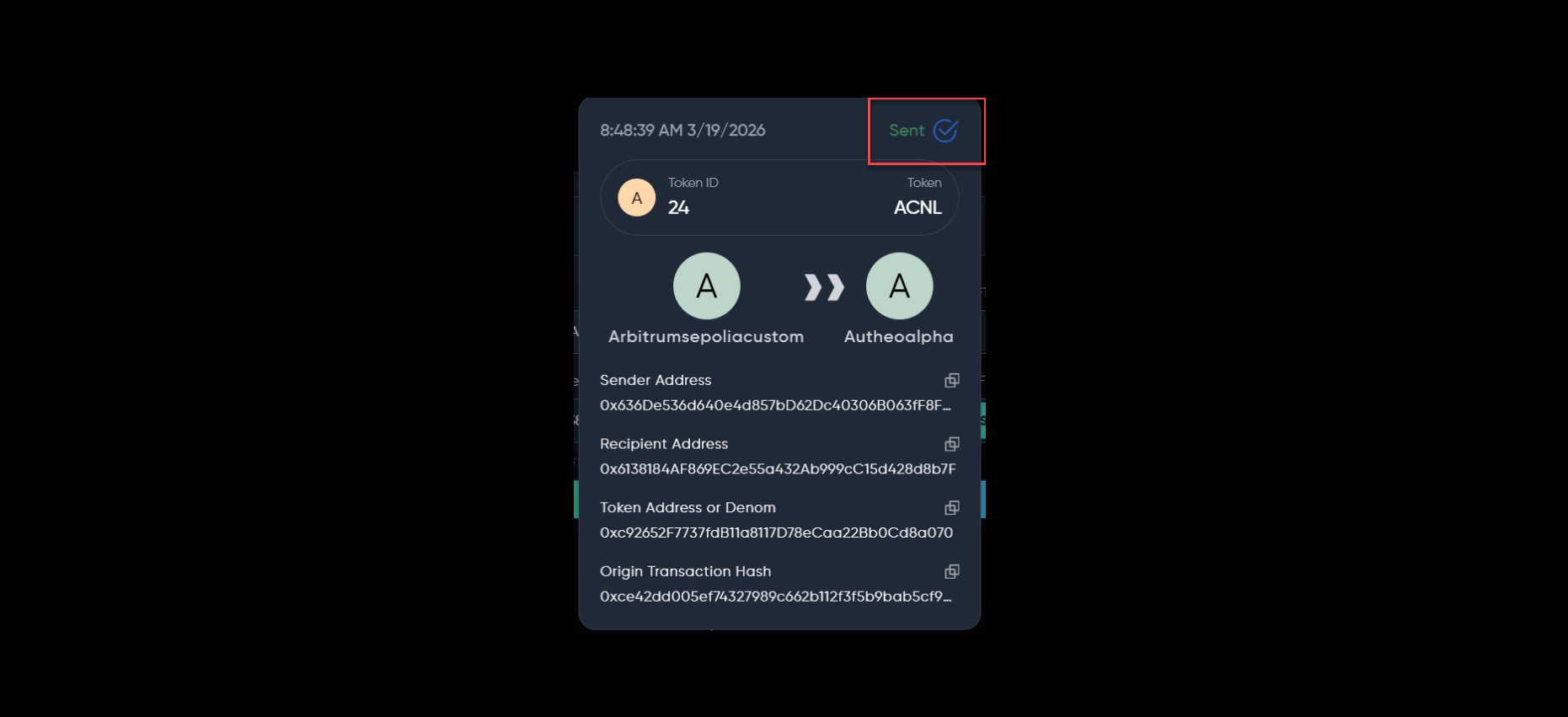
* Status updates once tokens arrive on the destination chain
Most transfers complete within a few minutes. Times vary by chain and network congestion.
Do not close the browser tab or navigate away while waiting for confirmation.
After the source chain confirms:
* A success notification appears
* The transfer is added to your Transfer History
* The Hyperlane protocol relays the message to the destination chain
* Status updates once tokens arrive on the destination chain
Most transfers complete within a few minutes. Times vary by chain and network congestion.
 ## Token approvals
When transferring ERC-20 tokens, you must first approve the warp route smart contract to spend tokens on your behalf. This is a standard blockchain security mechanism.
**How approvals work:**
1. **First transfer of a token** — The application prompts you to sign an approval transaction before the transfer. A small amount of gas on the source chain is required.
2. **Subsequent transfers** — If sufficient allowance remains, you will not be asked to approve again.
3. **Revoke and re-approve** — In some cases, the application may request that you revoke an existing approval and grant a new one.
NFT transfers (ERC-721) follow a similar approval pattern but operate per-token rather than as a spending allowance.
## Token approvals
When transferring ERC-20 tokens, you must first approve the warp route smart contract to spend tokens on your behalf. This is a standard blockchain security mechanism.
**How approvals work:**
1. **First transfer of a token** — The application prompts you to sign an approval transaction before the transfer. A small amount of gas on the source chain is required.
2. **Subsequent transfers** — If sufficient allowance remains, you will not be asked to approve again.
3. **Revoke and re-approve** — In some cases, the application may request that you revoke an existing approval and grant a new one.
NFT transfers (ERC-721) follow a similar approval pattern but operate per-token rather than as a spending allowance.