> ## Documentation Index
> Fetch the complete documentation index at: https://docs.autheo.com/llms.txt
> Use this file to discover all available pages before exploring further.
# Connecting wallets
> How to connect your wallet to the Autheo Bridge, including EVM, Solana, Cosmos, and other supported wallet types.
The Autheo Bridge supports wallets across multiple blockchain ecosystems. You must connect a wallet before initiating any transfer.
## Connecting your wallet
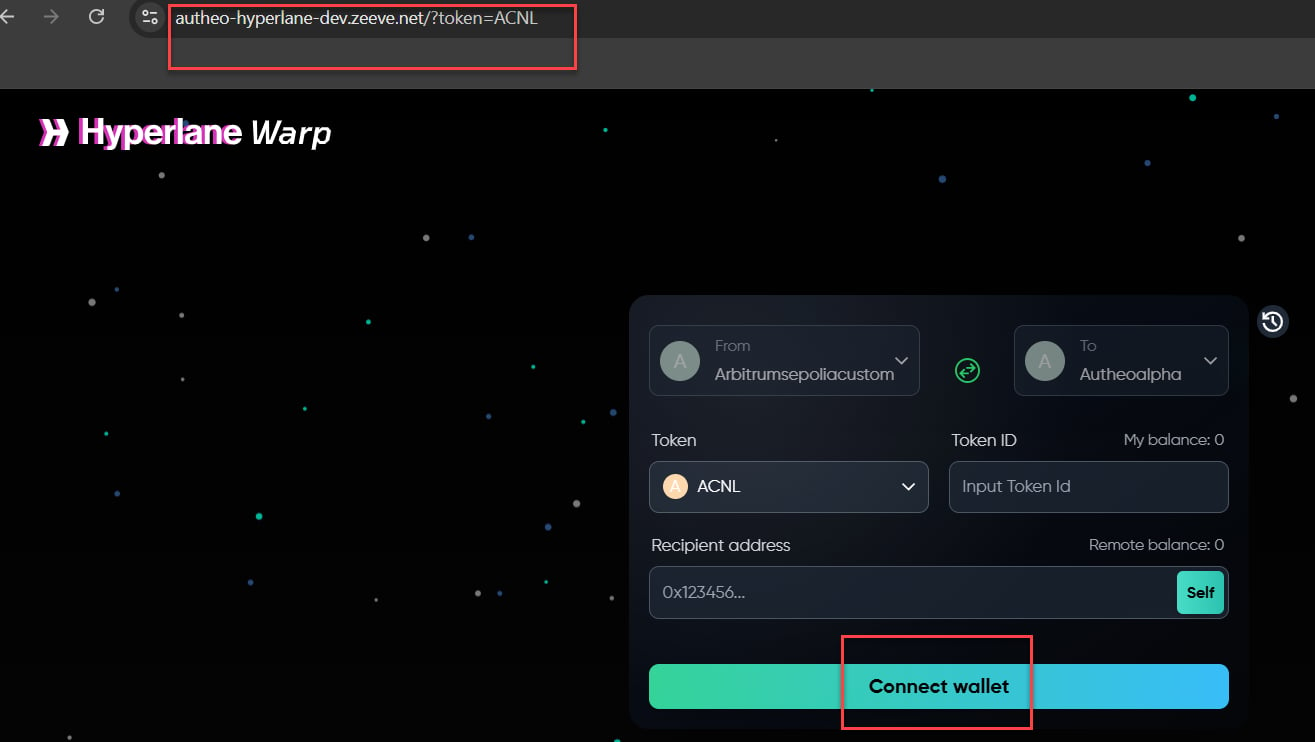
Navigate to the Autheo Bridge URL in your browser.
Click the **Connect Wallet** button in the top-right corner of the header.
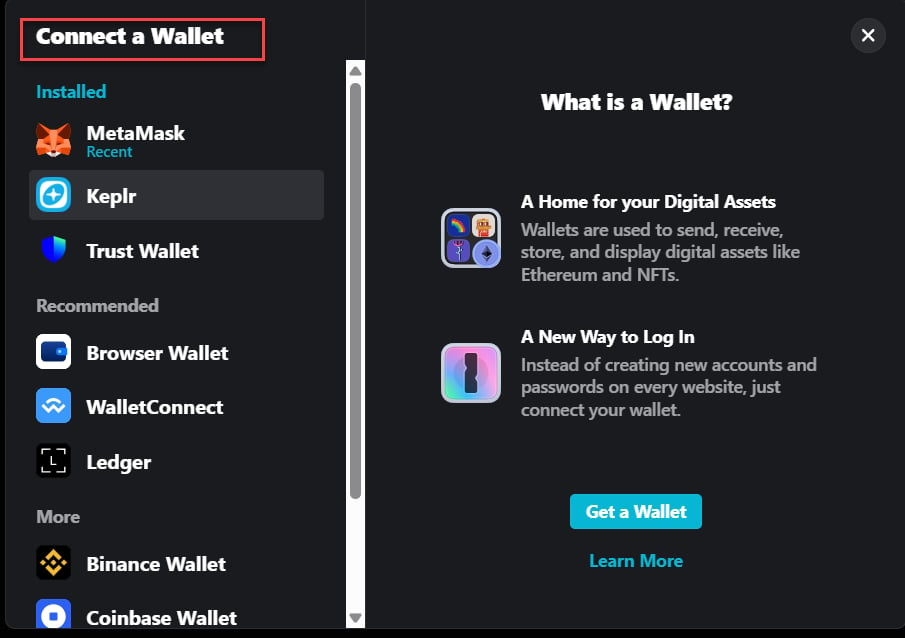
A wallet selection modal appears listing supported wallet protocols. Select your preferred wallet type based on the chain you are transferring from.
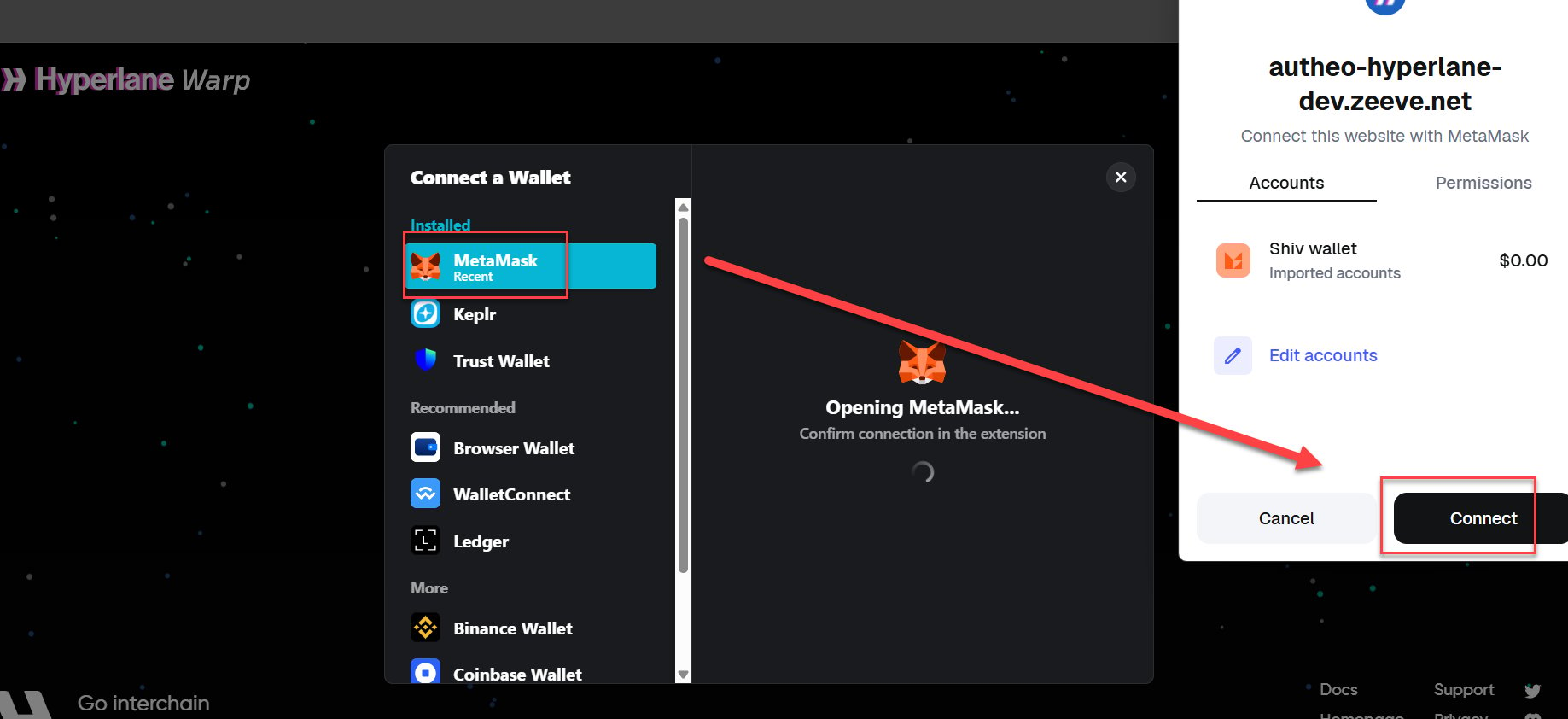
Approve the connection request in your wallet's popup window. Once connected, your wallet address is displayed in the top-right corner.
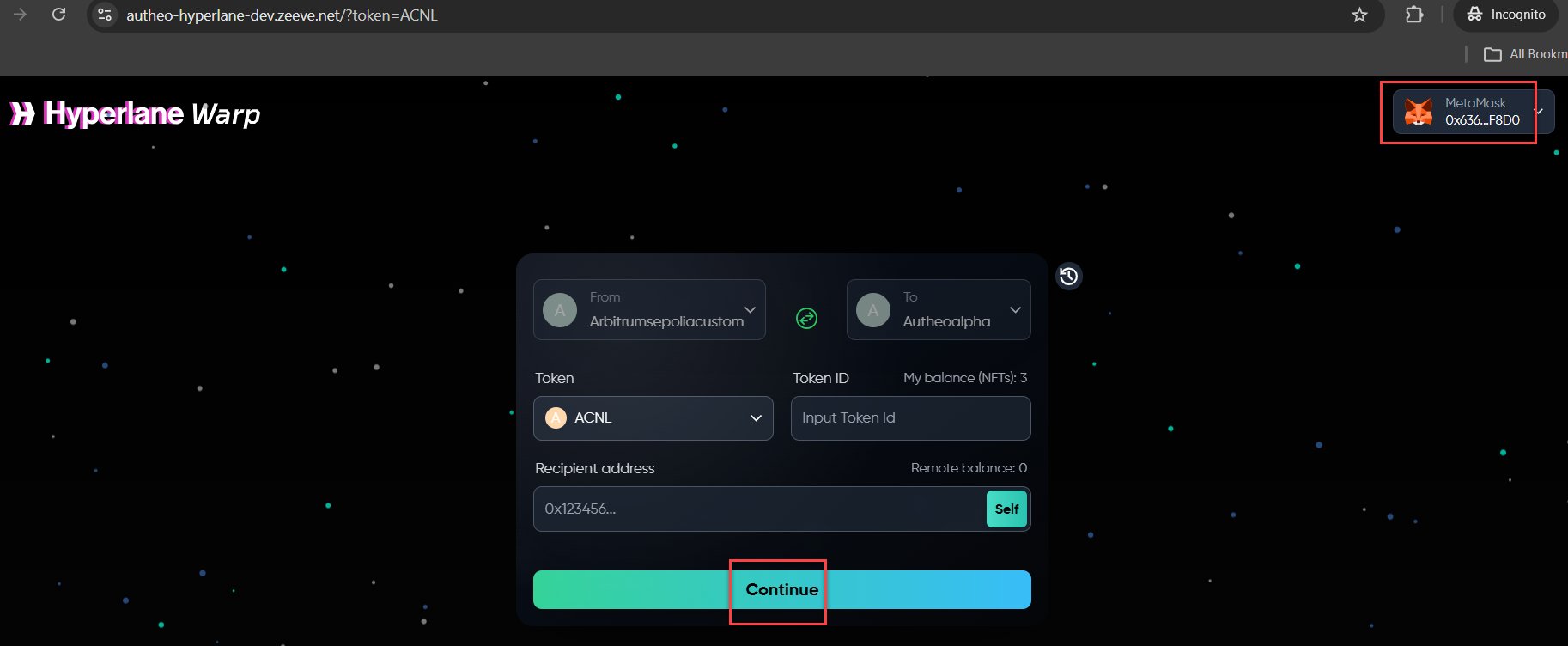 Your wallet must be on a network compatible with the selected source chain. If you are transferring from Arbitrum Sepolia, ensure your wallet is connected to Arbitrum Sepolia before initiating a transfer.
## Supported wallet types
| Ecosystem | Supported wallets |
| -------------------------------------- | ------------------------------------------ |
| EVM (Ethereum, Arbitrum, Autheo Alpha) | MetaMask, WalletConnect-compatible wallets |
| Solana | Phantom |
| Cosmos | Keplr |
| Starknet | Supported via wallet selector |
| Radix | Supported via wallet selector |
For most users bridging between Arbitrum Sepolia and Autheo Alpha, **MetaMask** is the recommended wallet.
## Managing connected wallets
The **History sidebar** (accessible via the clock icon in the floating action buttons) shows your connected wallets alongside your transfer history. From this sidebar you can:
* View which wallet addresses are currently connected
* Review transfers associated with each connected address
To switch wallets, disconnect your current wallet from within the wallet extension and reconnect using the **Connect Wallet** button. To disconnect entirely, use your wallet extension's disconnect or revoke connection option.
Your wallet must be on a network compatible with the selected source chain. If you are transferring from Arbitrum Sepolia, ensure your wallet is connected to Arbitrum Sepolia before initiating a transfer.
## Supported wallet types
| Ecosystem | Supported wallets |
| -------------------------------------- | ------------------------------------------ |
| EVM (Ethereum, Arbitrum, Autheo Alpha) | MetaMask, WalletConnect-compatible wallets |
| Solana | Phantom |
| Cosmos | Keplr |
| Starknet | Supported via wallet selector |
| Radix | Supported via wallet selector |
For most users bridging between Arbitrum Sepolia and Autheo Alpha, **MetaMask** is the recommended wallet.
## Managing connected wallets
The **History sidebar** (accessible via the clock icon in the floating action buttons) shows your connected wallets alongside your transfer history. From this sidebar you can:
* View which wallet addresses are currently connected
* Review transfers associated with each connected address
To switch wallets, disconnect your current wallet from within the wallet extension and reconnect using the **Connect Wallet** button. To disconnect entirely, use your wallet extension's disconnect or revoke connection option.